

1
Check plugin compatibility first
Contact WPML support with a list of your WordPress plugins and confirm they are compatible with WPML translation.Do this before anything else. Discovering a plugin incompatibility after configuring the connector means unpicking translation jobs, which is slower than asking first.For Advanced Custom Fields or Contact Form 7, follow WPML’s compatibility guides for those plugins.
2
Get your API key
Translated issues the API key and registers you. Contact
api@translated.com.3
Add Translated as a translation service
- In WordPress, go to Translation Management > Translators.
- Find Translated under Translation Services.
- Authenticate with your API key.
- Confirm the authorisation message appears.
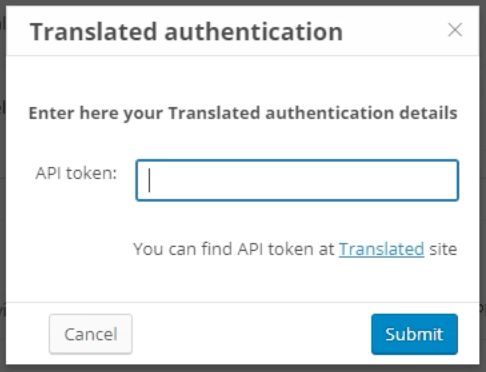
Authenticate with the API key Translated issued
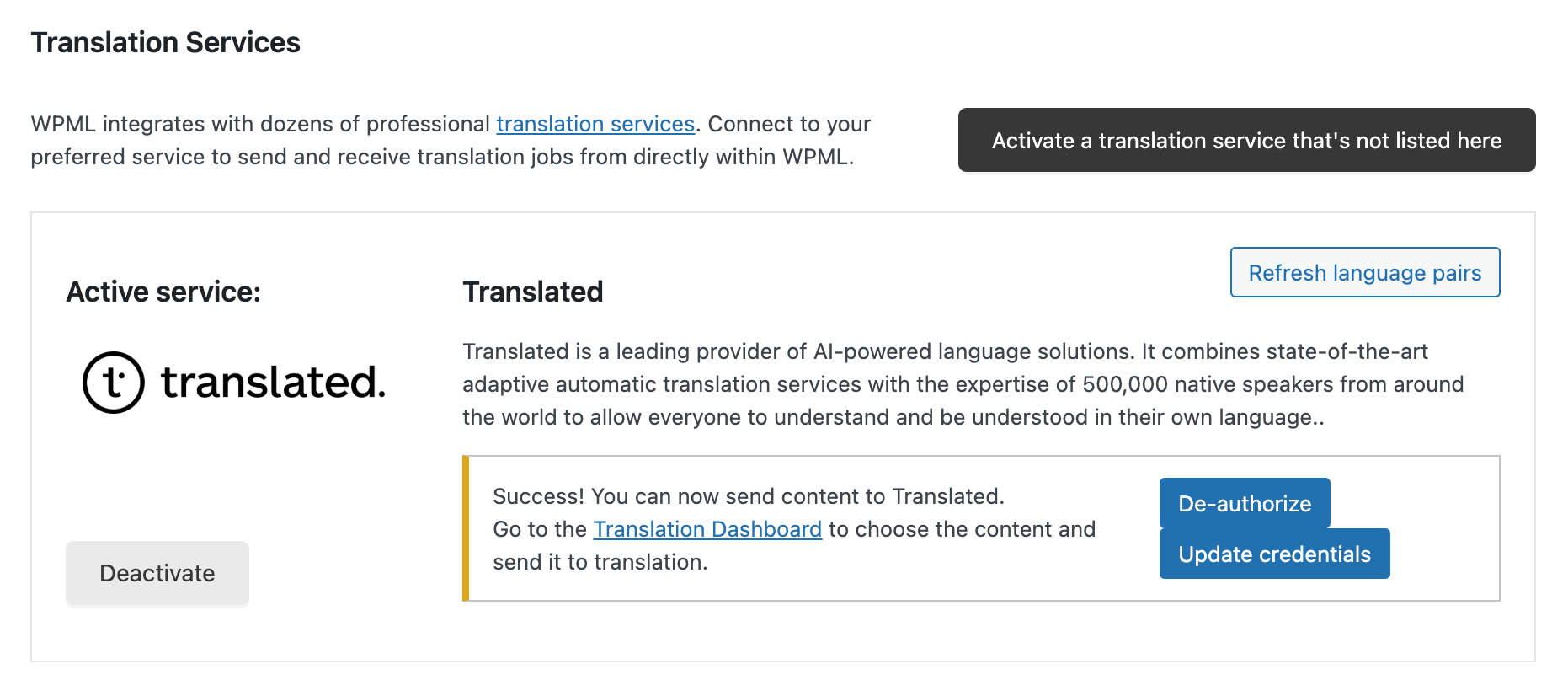
Translated active as a translation service
4
Send your language configuration
- Go to WPML > Languages > Edit Languages, in the Site Languages section.
- Take a screenshot of your configured languages.
- Send it to Translated, who set up the language code mappings.
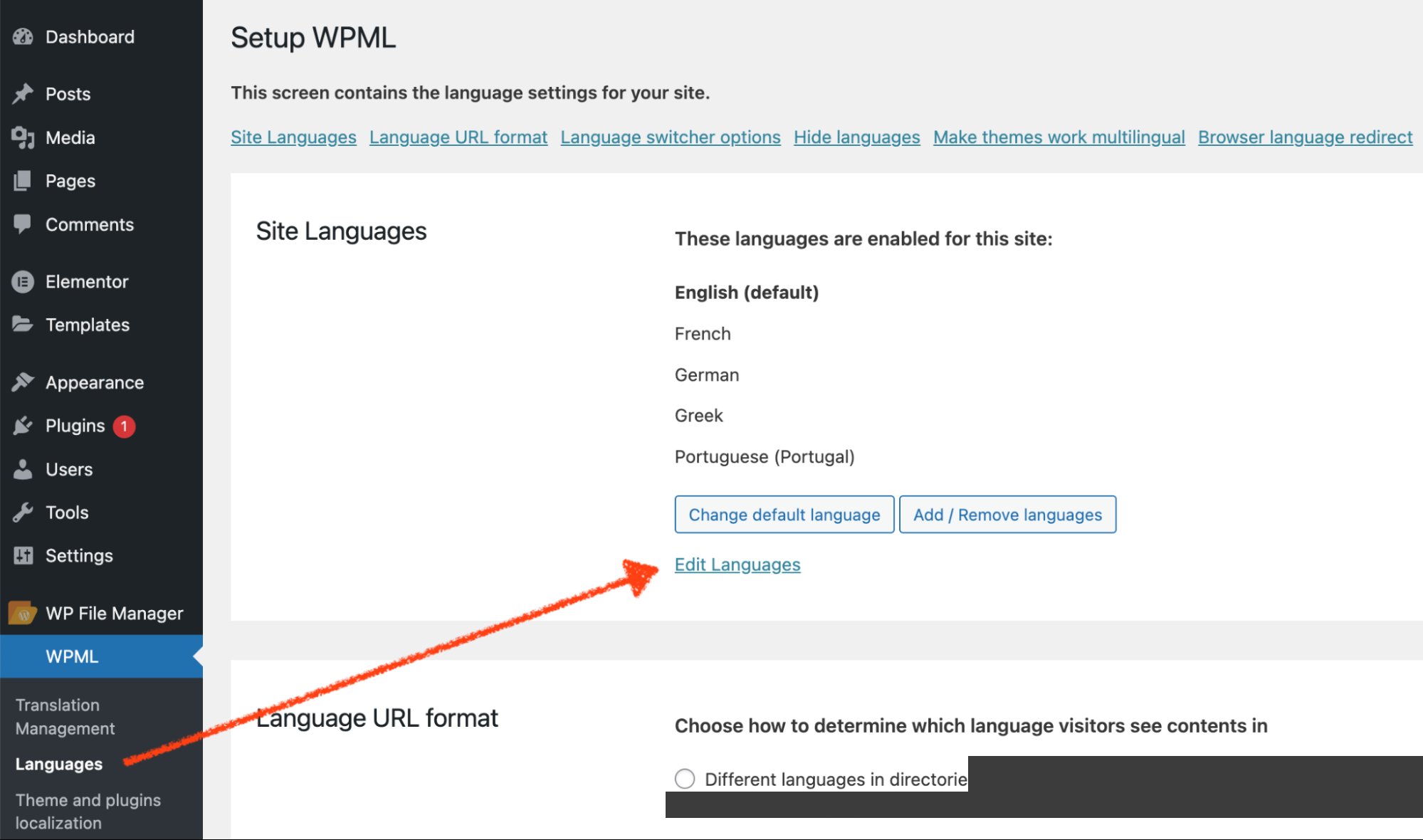
WPML then Languages then Edit Languages
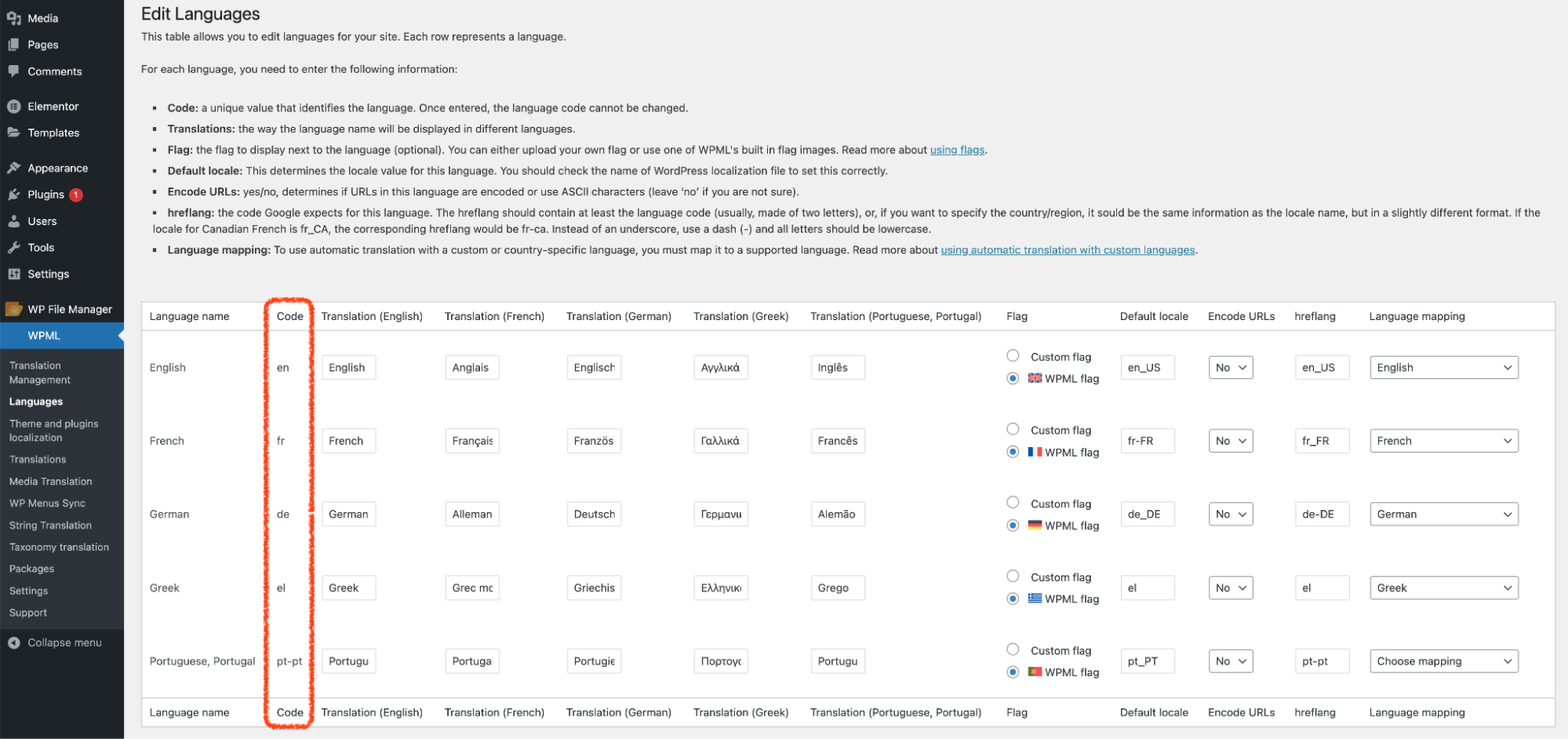
The language codes Translated needs to map
5
Agree service types
Agree the service types with Translated. They configure the connector and confirm when you can start.
Testing
WPML testing has constraints that other connectors do not, because the Translation Proxy sits between your site and Translated. Agree a test approach with Translated rather than assuming sandbox behaves exactly like production.Support
- General questions:
info-tos@translated.com - Technical questions and onboarding:
api@translated.com - Plugin compatibility: WPML support