

Assigning content for translation
Open the Translation Dashboard
Select the items to translate
Assign the translation service
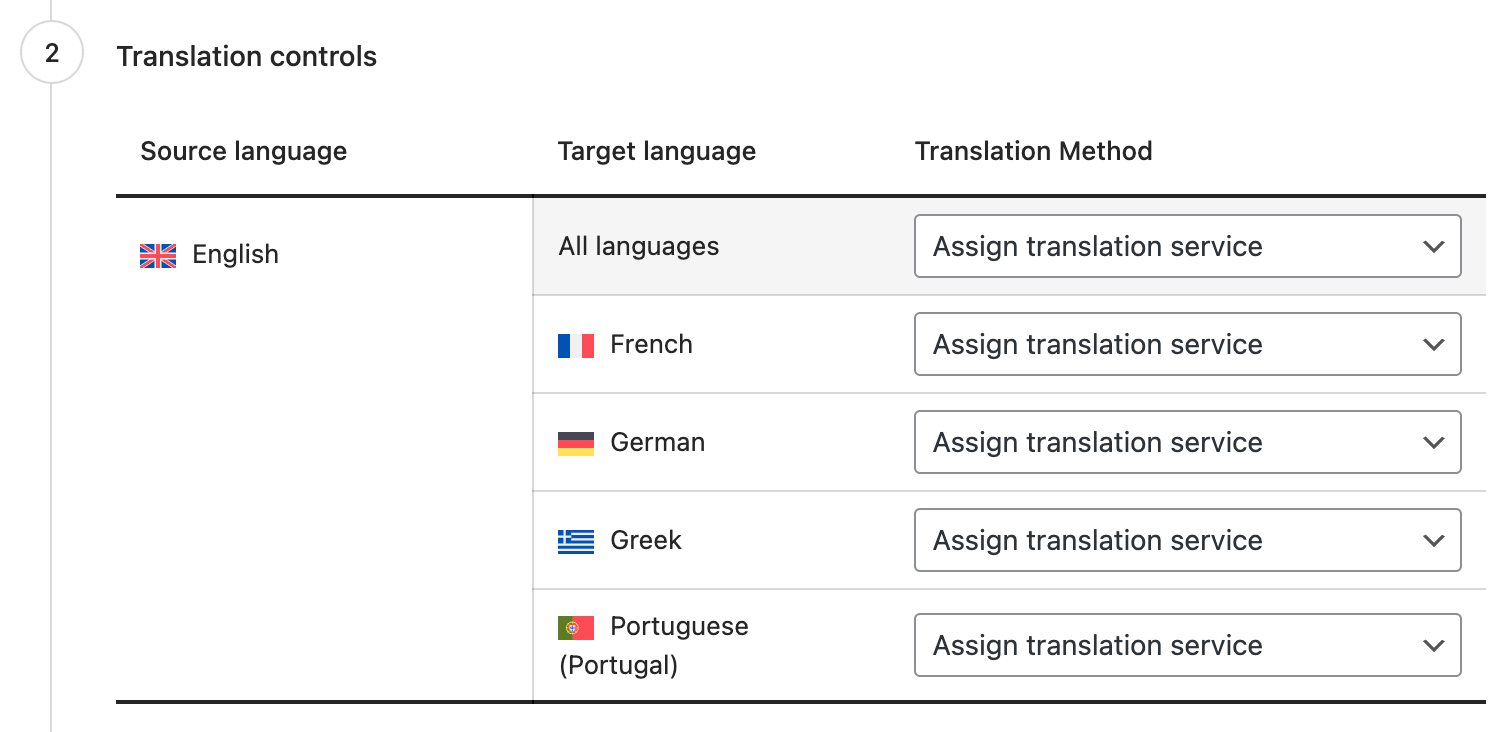
Assign the translation service per target language
Set a batch name
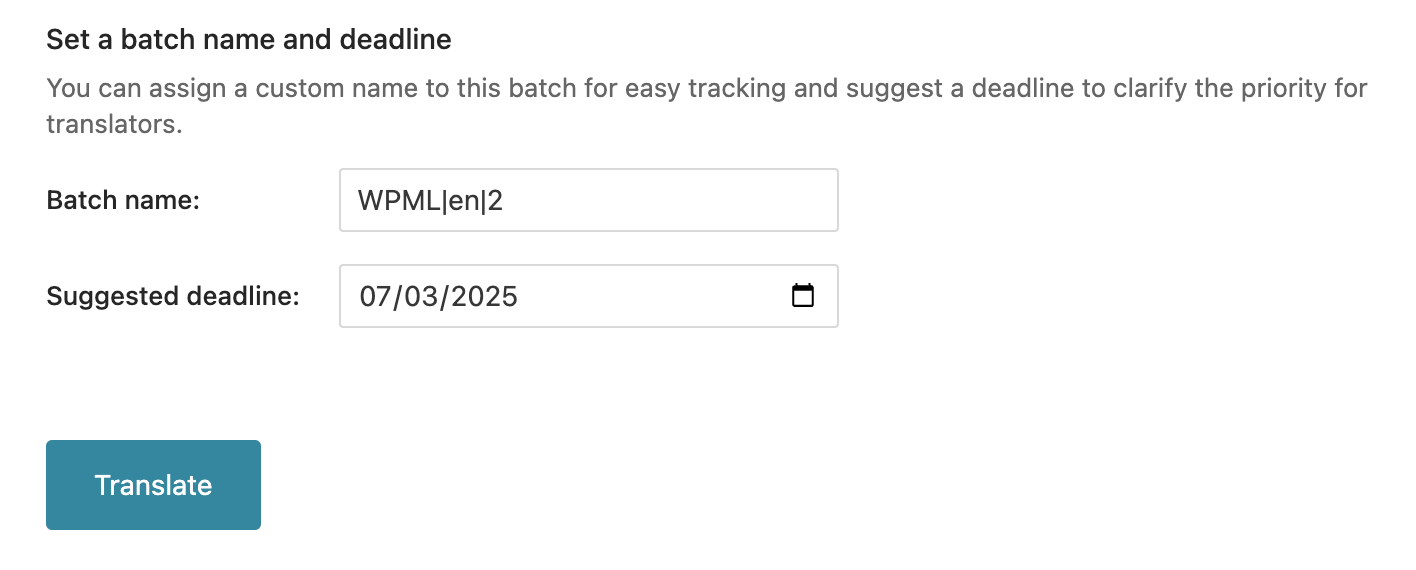
Batch name and suggested deadline
Translate
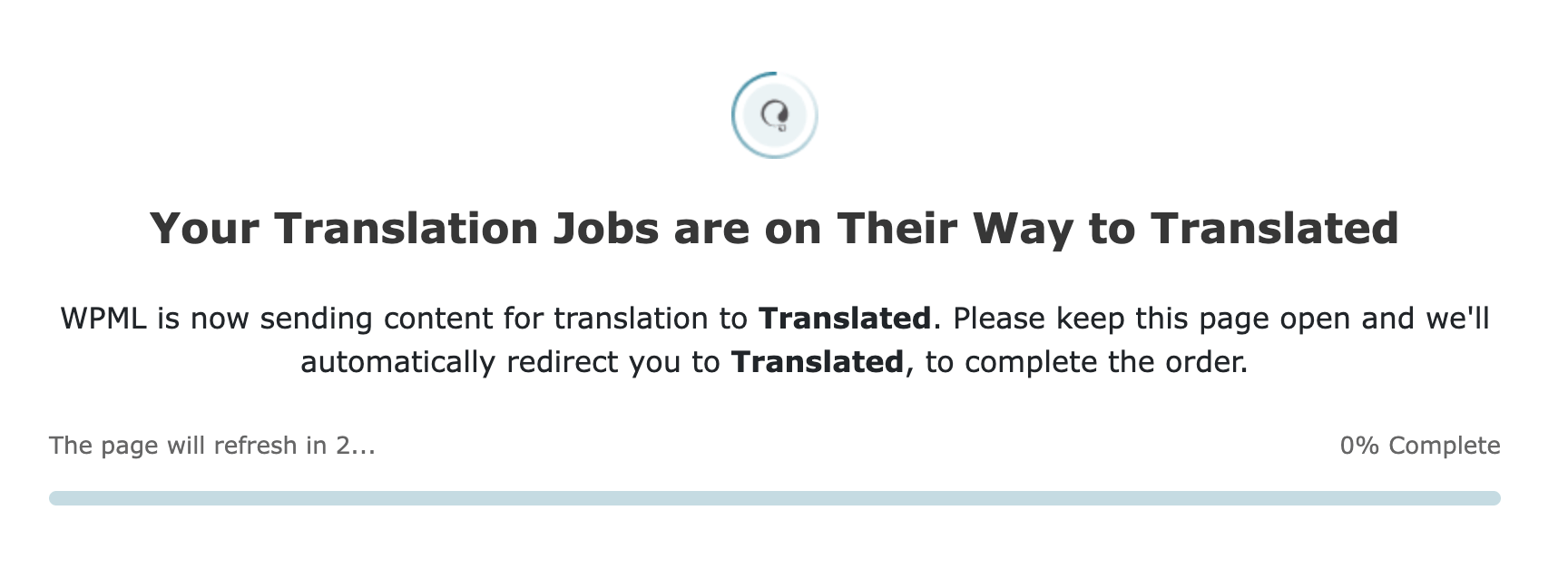
WPML sends the jobs
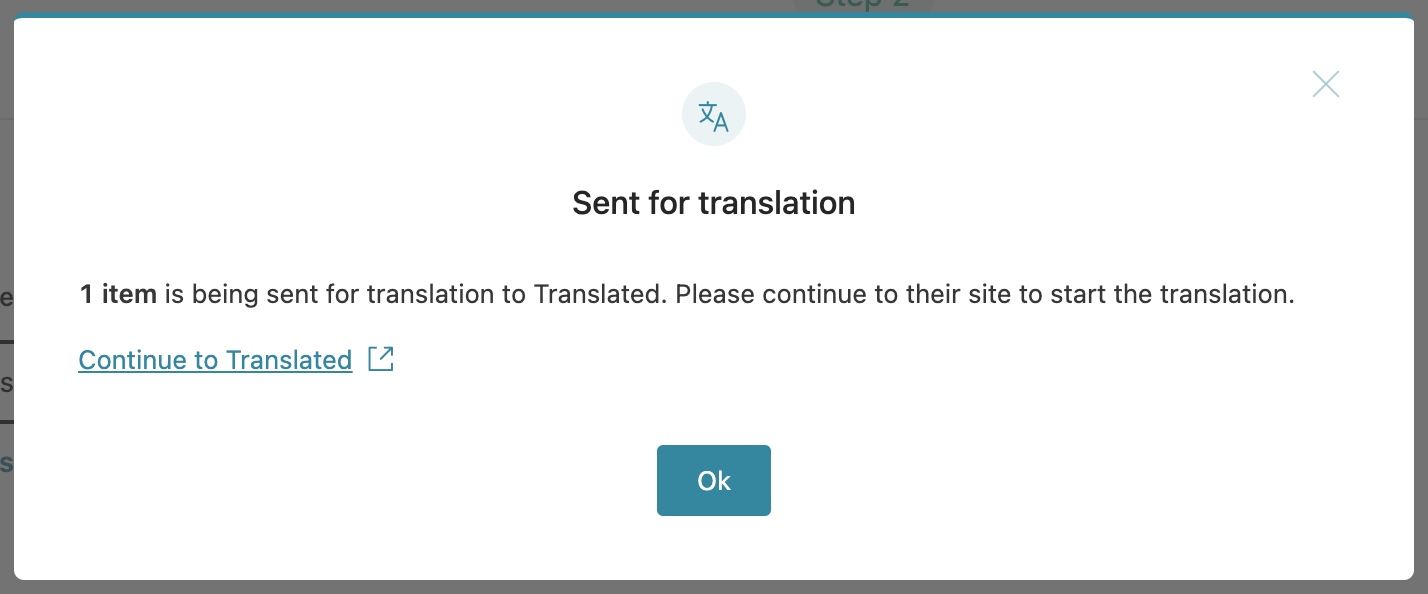
Continue to Translated to view status
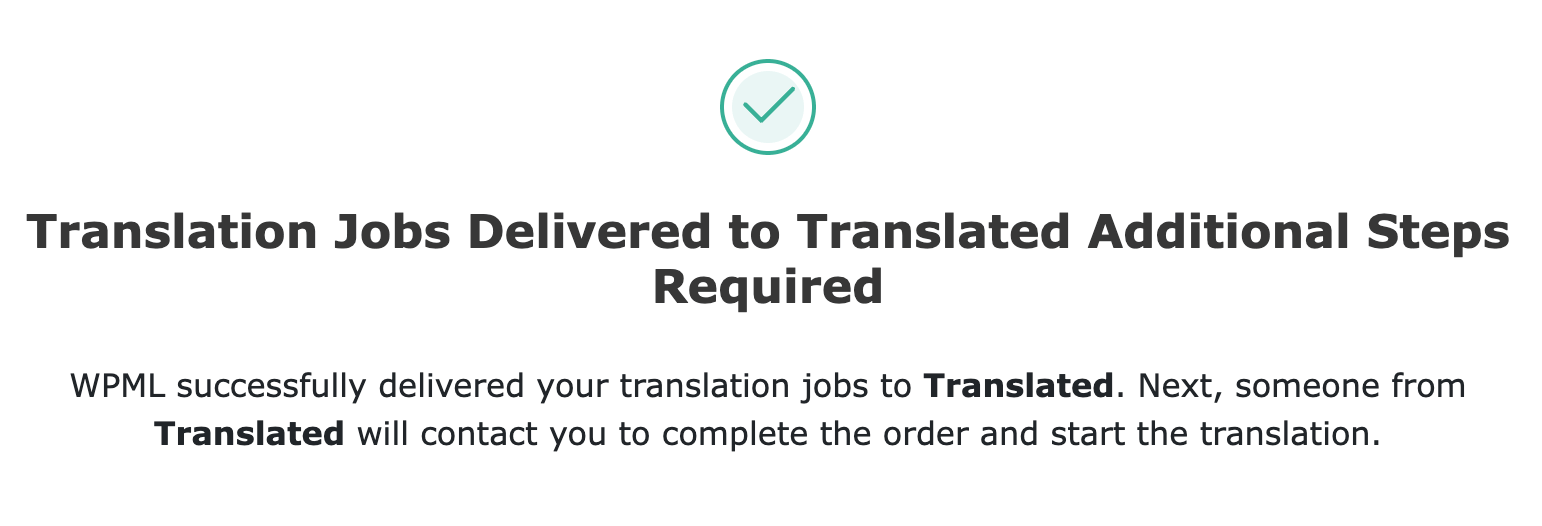
The jobs have reached Translated
Receiving translations
- Go to the Translation Jobs tab.
- Use Start batch sync on any asset in the batch. This syncs the whole batch.
- WPML checks job status, downloads the target XLIFF where the job is not cancelled, and confirms delivery back to the connector.
- Translations import automatically.
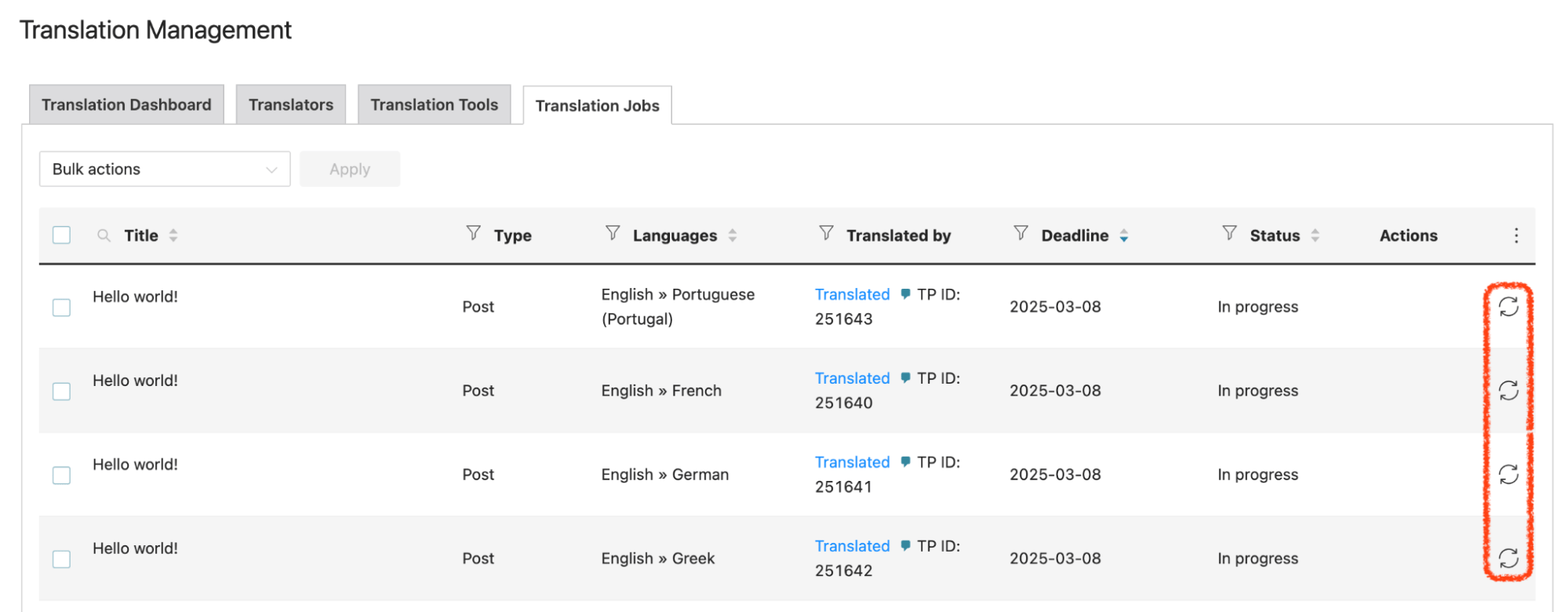
Jobs in progress, with the sync control on each row
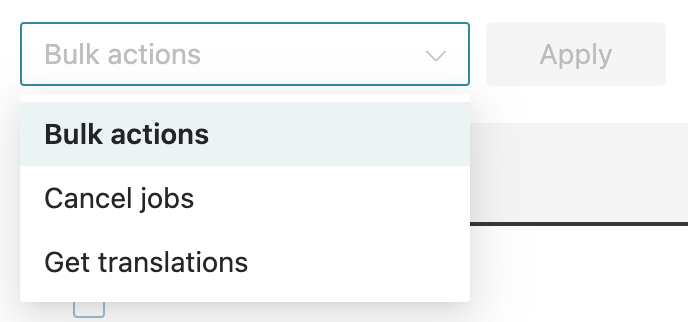
Bulk actions can cancel jobs or fetch translations
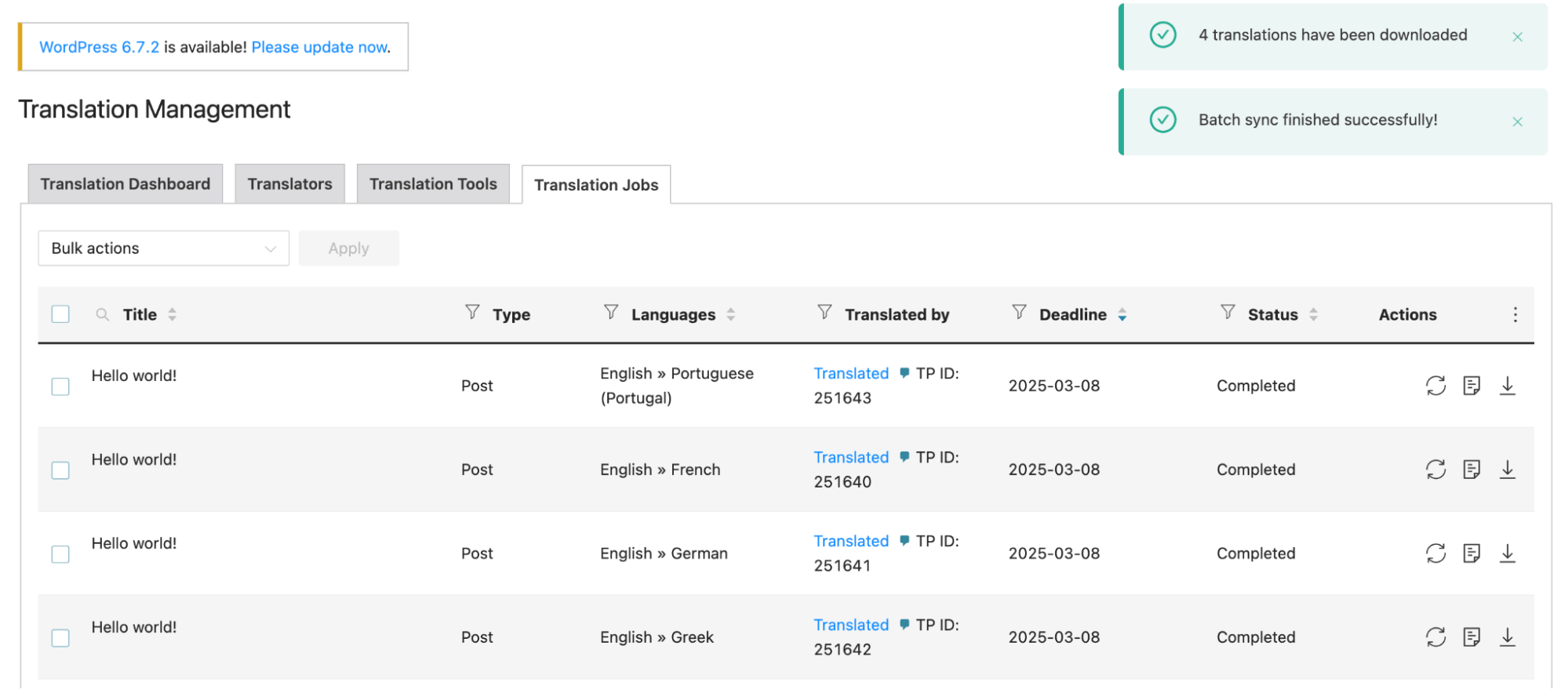
Translations downloaded and the batch synced
Cancelling
Requests still in the queue can be cancelled on the TranslationOS dashboards. Everything else goes through your project manager.Known issue: silent cancellation on resubmission
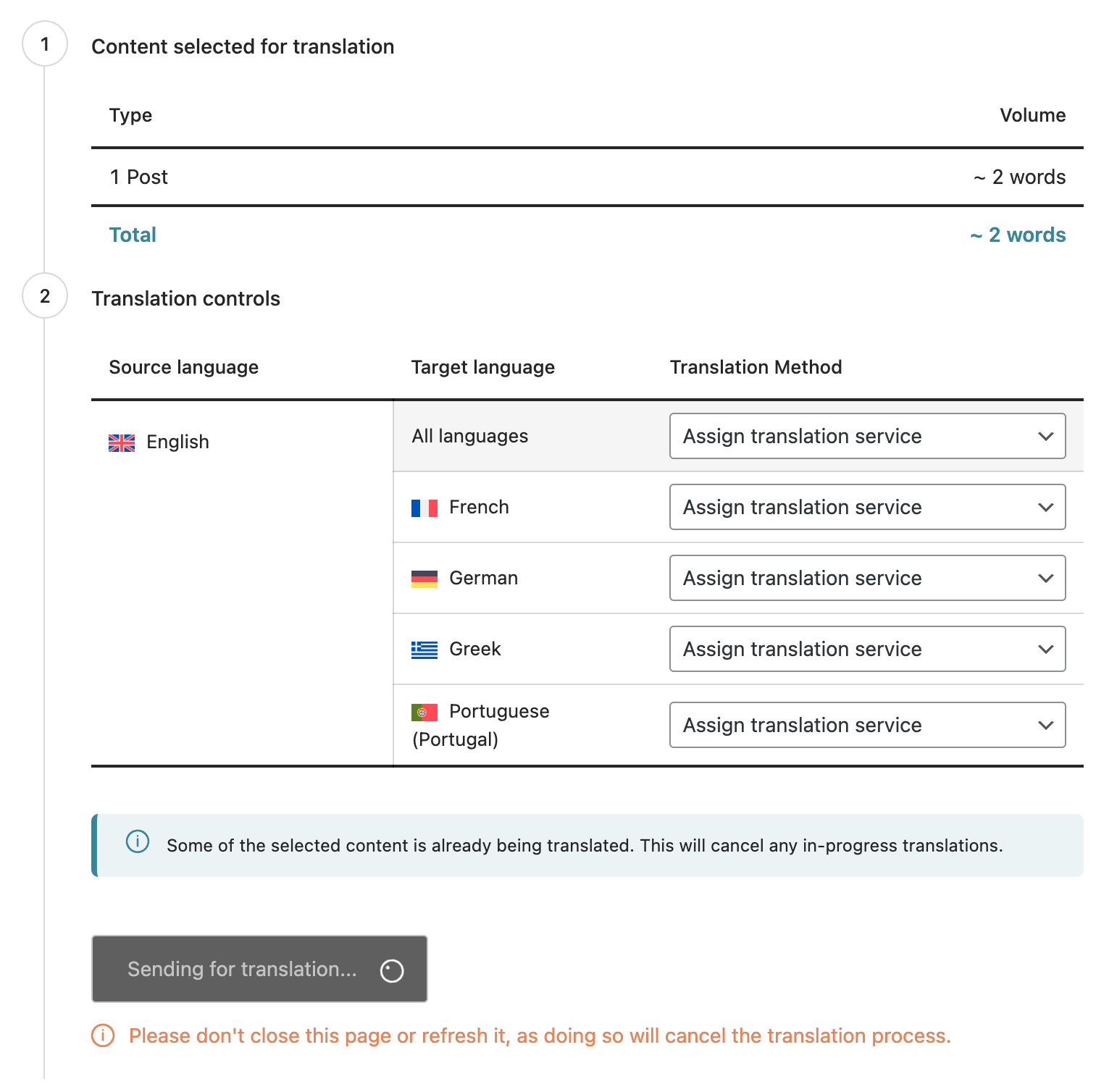
WPML warns that resubmitting cancels in-progress translations
Troubleshooting
Authentication failed when adding the service
Authentication failed when adding the service
Content is not offered for translation
Content is not offered for translation
Jobs are complete in TranslationOS but not in WordPress
Jobs are complete in TranslationOS but not in WordPress
A language is missing
A language is missing
FAQ
Which WPML plan do we need?
Which WPML plan do we need?
Can we choose a service type per request?
Can we choose a service type per request?
Where do I find my tracking IDs?
Where do I find my tracking IDs?