Placing orders from the sidebar, following them, and receiving translations
For Contentful editors.
Before you order
Make sure the master language is populated. The connector translates what is there, so an incomplete source produces an incomplete translation.The app only appears on the content models selected at installation.
Placing an order
1
Open the entry
Click New translation order in the sidebar.
The Translated app in the entry sidebar
2
Select the target languages
3
Choose a service type
This determines workflow, cost, and turnaround under your service level agreement.
4
Add instructions, optional
Notes here go to the translators.
5
Submit
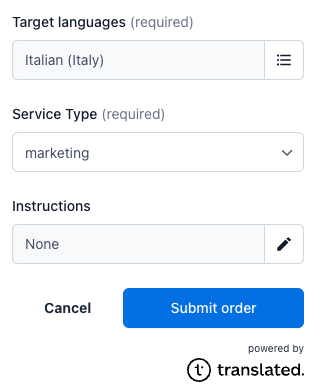
Click Submit order. The order shows as In queue.
Target languages, service type and instructions
Following progress
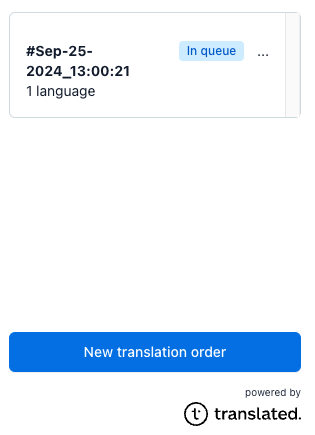
In queue. The order can still be cancelled from the three-dot menu.
An order in queue
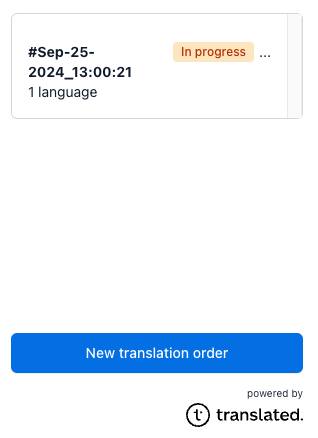
In progress. Translators have started. The order can no longer be cancelled from the app.
An order in progress
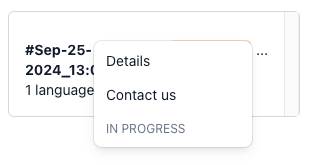
The three-dot menu on an order that is already in progress
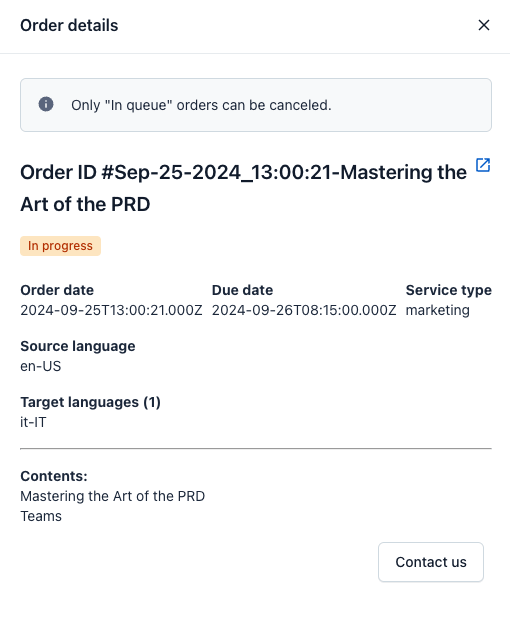
Details. The three-dot menu shows order information and a link to the TranslationOS dashboard. The order group ID shown next to “Order #” is what you search for there.
Order details, with a link through to TranslationOS
Receiving translations
Delivered orders disappear from the app. When no orders remain for an entry, the app returns to its original state.
The edit-during-translation rule
If you edit a source field while its order is active, that field’s translation is withheld. Contentful cannot flag a translation as outdated, so the connector does not deliver content it knows is stale. Fields you did not touch are delivered normally.What to do: wait for the order to finish, then resend the entry. Changes made after delivery can be resent straight away.
Cancelling
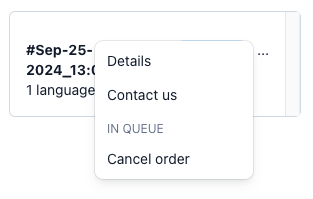
From the app, while the order is still in queue, use the three-dot menu.
Cancel order appears only while the order is in queue
Once translators have started, cancel from the TranslationOS dashboards if the requests are still queued there, or contact your project manager.
Troubleshooting
The app is not in the sidebar
The content model was not selected at installation, or the app was not added to that model’s sidebar under Content model.
A target language is missing from the list
It is not enabled in Settings > Locales, or its code needs an alias. See Language codes.
A field came back untranslated
Either you edited it during the order, or it exceeds the character limit.
Content from another model was translated
Expected. Model selection controls where the app appears, not what the connector ingests. References to any model are followed.
FAQ
Where do I find my tracking IDs?
TranslationOS ID
Entries
Assets
Content ID
Entry ID and field name
Asset ID
Order ID
Entry title, or Untitled plus entry ID
Asset title, or Untitled plus asset ID
Order group ID
Date and main entry title
Date and main entry title
Search any of them in the Requests or Content views. See Tracking IDs.
Can we translate assets as well as entries?
Yes. Assets have their own identifiers, shown above.
{"docsConfig":{"theme":"mint","$schema":"https://mintlify.com/docs.json","name":"TranslationOS","colors":{"primary":"#2985EC","light":"#94C5FE","dark":"#0055B8"},"logo":{"light":"https://mintcdn.com/translated/A02MktdeiyJy_IDR/logo/translationos-help-light.png?fit=max\u0026auto=format\u0026n=A02MktdeiyJy_IDR\u0026q=85\u0026s=3b0464b16c152c0abfc72c2f24658c24","dark":"https://mintcdn.com/translated/A02MktdeiyJy_IDR/logo/translationos-help-dark.png?fit=max\u0026auto=format\u0026n=A02MktdeiyJy_IDR\u0026q=85\u0026s=bb054a81131ba466f71d9e3623ac5668","href":"/"},"favicon":{"light":"https://mintcdn.com/translated/rjYQ9-wgKIB21Erw/favicon.png?fit=max\u0026auto=format\u0026n=rjYQ9-wgKIB21Erw\u0026q=85\u0026s=49e26f94b6b943273a3dfb9f46ac80de","dark":"https://mintcdn.com/translated/rjYQ9-wgKIB21Erw/favicon-dark.png?fit=max\u0026auto=format\u0026n=rjYQ9-wgKIB21Erw\u0026q=85\u0026s=0f36351171cd8606b04210f40c8d3d51"},"appearance":{"default":"system","strict":false},"background":{"color":{"light":"#FFFFFF","dark":"#161618"}},"navbar":{"primary":{"type":"button","label":"Open TranslationOS","href":"https://os.translated.com"}},"footer":{"socials":{"website":"https://translated.com","linkedin":"https://www.linkedin.com/company/translated"}},"fonts":{"heading":{"family":"Inter","weight":600},"body":{"family":"Inter"}},"styling":{"eyebrows":"section","codeblocks":{"theme":{"light":"github-light","dark":"github-dark"}},"latex":false},"integrations":{"posthog":{"apiKey":"phc_sXLZBnf2hsgtJDJp5pUbR4ebMMxDk6m7Gg4H5p2pHaCE","apiHost":"https://os-ba.translated.com","sessionRecording":true}},"navigation":{"global":{"anchors":[{"anchor":"API reference","icon":"code","href":"https://api.translated.com/v2"},{"anchor":"Support","icon":"life-ring","href":"https://support.os.translated.com/"}]},"pages":[]}},"deployment":{"deploymentMetadataValue":{"subdomain":"translated","hasAudioNarration":false,"actualSubdomain":"translated","customDomains":["help.os.translated.com"],"gitSource":{"type":"github","owner":"translated","repo":"enterprise-product","deployBranch":"main","contentDirectory":"","isPrivate":true,"mountPath":"","label":"","_id":"6afe0f347fc61c3a7233ce61"},"entitlements":{"AI_CHAT":{"status":"ENABLED"},"WEB_MCP":{"status":"ENABLED"},"NARRATION":{"status":"ENABLED"}},"buildId":"6b05bbece6cf07776d988517","clientVersion":"0.0.4304","searchFilterCounts":[{"language":"default","tag":"Connectors","count":63},{"language":"default","tag":"Documentation","count":24},{"language":"default","tag":"Content management systems","count":15},{"language":"default","tag":"Translation management","count":12},{"language":"default","tag":"Marketing and messaging","count":12},{"language":"default","tag":"Support and service","count":9},{"language":"default","tag":"The platform","count":9},{"language":"default","tag":"Design and forms","count":7},{"language":"default","tag":"Start here","count":7},{"language":"default","tag":"About connectors","count":5}],"searchSettings":{"fullPageSearch":true,"showContentSnippets":true,"isFiltersEnabled":true}},"assistantConfig":{"enableAskAiButton":false,"enableStarterQuestions":false,"enableContextualStarterQuestions":false,"enableAskAiSearchBar":true},"basePath":"","hasChatPermissions":false,"hasWebMcpPermissions":true,"toggles":[{"name":"kill-isr","enabled":true,"variant":{"name":"disabled","enabled":false,"feature_enabled":true},"impressionData":false},{"name":"custom-rbac-roles","enabled":true,"variant":{"name":"disabled","enabled":false,"feature_enabled":true},"impressionData":false},{"name":"agent-mintlify-slack","enabled":true,"variant":{"name":"disabled","enabled":false,"feature_enabled":true},"impressionData":false},{"name":"agent-integrations-settings","enabled":true,"variant":{"name":"disabled","enabled":false,"feature_enabled":true},"impressionData":false},{"name":"rbac-expansion","enabled":true,"variant":{"name":"disabled","enabled":false,"feature_enabled":true},"impressionData":false},{"name":"automations-pr-grouping","enabled":true,"variant":{"name":"disabled","enabled":false,"feature_enabled":true},"impressionData":false},{"name":"custom-prefix","enabled":true,"variant":{"name":"disabled","enabled":false,"feature_enabled":true},"impressionData":false},{"name":"analytics-v7","enabled":true,"variant":{"name":"disabled","enabled":false,"feature_enabled":true},"impressionData":false},{"name":"user-flows-analytics","enabled":true,"variant":{"name":"disabled","enabled":false,"feature_enabled":true},"impressionData":false},{"name":"no-publish-flow","enabled":true,"variant":{"name":"disabled","enabled":false,"feature_enabled":true},"impressionData":false},{"name":"snapshot-serving-live","enabled":true,"variant":{"name":"disabled","enabled":false,"feature_enabled":true},"impressionData":false},{"name":"stripTemperatureMiddleware","enabled":true,"variant":{"name":"disabled","enabled":false,"feature_enabled":true},"impressionData":false},{"name":"support-platform-pylon-zendesk","enabled":true,"variant":{"name":"disabled","enabled":false,"feature_enabled":true},"impressionData":false},{"name":"snapshot-serving","enabled":true,"variant":{"name":"disabled","enabled":false,"feature_enabled":true},"impressionData":false},{"name":"instant-rollback","enabled":true,"variant":{"name":"disabled","enabled":false,"feature_enabled":true},"impressionData":false},{"name":"granular-notifications-server","enabled":true,"variant":{"name":"disabled","enabled":false,"feature_enabled":true},"impressionData":false},{"name":"granular-notifications","enabled":true,"variant":{"name":"disabled","enabled":false,"feature_enabled":true},"impressionData":false},{"name":"automations-fable","enabled":true,"variant":{"name":"disabled","enabled":false,"feature_enabled":true},"impressionData":false},{"name":"fixed-ai-action-pricing","enabled":true,"variant":{"name":"disabled","enabled":false,"feature_enabled":true},"impressionData":false},{"name":"site-roles","enabled":true,"variant":{"name":"disabled","enabled":false,"feature_enabled":true},"impressionData":false},{"name":"automation-resolve-merge-conflict","enabled":true,"variant":{"name":"disabled","enabled":false,"feature_enabled":true},"impressionData":false},{"name":"scoped-publishing","enabled":true,"variant":{"name":"disabled","enabled":false,"feature_enabled":true},"impressionData":false},{"name":"mintql","enabled":true,"variant":{"name":"disabled","enabled":false,"feature_enabled":true},"impressionData":false},{"name":"page-level-analytics","enabled":true,"variant":{"name":"disabled","enabled":false,"feature_enabled":true},"impressionData":false},{"name":"editor-version-history-v2","enabled":true,"variant":{"name":"disabled","enabled":false,"feature_enabled":true},"impressionData":false},{"name":"billing-page-v2","enabled":true,"variant":{"name":"disabled","enabled":false,"feature_enabled":true},"impressionData":false},{"name":"full-page-search","enabled":true,"variant":{"name":"disabled","enabled":false,"feature_enabled":true},"impressionData":false},{"name":"workspace-projects","enabled":true,"variant":{"name":"disabled","enabled":false,"feature_enabled":true},"impressionData":false},{"name":"fork-pr-previews","enabled":true,"variant":{"name":"disabled","enabled":false,"feature_enabled":true},"impressionData":false},{"name":"revalidation-jwt","enabled":true,"variant":{"name":"disabled","enabled":false,"feature_enabled":true},"impressionData":false},{"name":"hobby-abuse-scan","enabled":true,"variant":{"name":"disabled","enabled":false,"feature_enabled":true},"impressionData":false},{"name":"dashboard-inbox","enabled":true,"variant":{"name":"disabled","enabled":false,"feature_enabled":true},"impressionData":false},{"name":"turbopuffer-dual-write","enabled":true,"variant":{"name":"disabled","enabled":false,"feature_enabled":true},"impressionData":false},{"name":"approve-review-flow","enabled":true,"variant":{"name":"disabled","enabled":false,"feature_enabled":true},"impressionData":false},{"name":"editor-metadata","enabled":true,"variant":{"name":"disabled","enabled":false,"feature_enabled":true},"impressionData":false},{"name":"sso-setup-deadline-banner","enabled":true,"variant":{"name":"disabled","enabled":false,"feature_enabled":true},"impressionData":false},{"name":"turbopuffer-serve","enabled":true,"variant":{"name":"disabled","enabled":false,"feature_enabled":true},"impressionData":false},{"name":"live-agents","enabled":true,"variant":{"name":"disabled","enabled":false,"feature_enabled":true},"impressionData":false},{"name":"starter-pricing","enabled":true,"variant":{"name":"control","enabled":true,"payload":{"type":"string","value":"control"},"feature_enabled":true},"impressionData":false},{"name":"llms-txt-v2","enabled":true,"variant":{"name":"disabled","enabled":false,"feature_enabled":true},"impressionData":false},{"name":"wildcard-email-auth","enabled":true,"variant":{"name":"disabled","enabled":false,"feature_enabled":true},"impressionData":false}],"googleFontsInlined":false},"customCss":[{"filePath":"style.css","content":".tos-hero{background-image:linear-gradient(118deg, #0D02FC 0%, #0F43FB 45%, #029CFF 100%)}.tos-searchbox{box-shadow:0 10px 30px rgba(0, 12, 52, 0.18);transition:transform 120ms ease, box-shadow 120ms ease}.tos-searchbox:hover{transform:translateY(-1px);box-shadow:0 14px 36px rgba(0, 12, 52, 0.24)}html[data-current-path=\"/\"] #search-bar-entry{display:none}html.dark .tos-hero{background-image:linear-gradient(118deg, #0A17A8 0%, #0C31B0 45%, #0A72B0 100%)}html.dark .tos-searchbox{background:rgba(33, 33, 36, 0.80);color:#c9cdd4;box-shadow:0 10px 30px rgba(0, 0, 0, 0.35);backdrop-filter:blur(6px)}html.dark .tos-searchbox span{border-color:#3A3A40;color:#BDBDC3}html.dark main img{filter:brightness(0.9) contrast(0.98)}:root{--gray-50: 247 247 247;--gray-100: 238 238 239;--gray-200: 222 222 225;--gray-300: 189 189 195;--gray-400: 172 172 179;--gray-500: 151 151 159;--gray-600: 110 110 119;--gray-700: 58 58 64;--gray-800: 45 45 48;--gray-900: 33 33 36;--gray-950: 9 9 10}#sidebar,#navbar{background-color:rgb(var(--gray-50))}#sidebar{border-right:1px solid rgb(var(--gray-200))}html.dark #sidebar,html.dark #navbar{background-color:#09090a}html.dark #sidebar{border-right-color:#2d2d30}.card{background-color:rgb(var(--gray-50));border-color:rgb(var(--gray-200))}html.dark .card{background-color:#212124;border-color:#3a3a40}html.dark .accordion{background-color:#212124}.card,.accordion,.accordion-group,figure.frame{border-radius:0.75rem}pre{border-radius:0.625rem}html.dark .prose :where(p,li,td,blockquote,dd){color:rgb(208 208 213)}"}]}
{"page":{"pagePath":"connectors/contentful/requesting-and-tracking","slug":"/connectors/contentful/requesting-and-tracking","pageMetadata":{"title":"Requesting and tracking Contentful translations","description":"Placing orders from the sidebar, following them, and receiving translations","sidebarTitle":"Request and track","href":"/connectors/contentful/requesting-and-tracking"},"description":{"compiledSource":"\"use strict\";\nconst {jsx: _jsx} = arguments[0];\nconst {useMDXComponents: _provideComponents} = arguments[0];\nfunction _createMdxContent(props) {\n const _components = {\n p: \"p\",\n ..._provideComponents(),\n ...props.components\n };\n return _jsx(_components.p, {\n children: \"Placing orders from the sidebar, following them, and receiving translations\"\n });\n}\nfunction MDXContent(props = {}) {\n const {wrapper: MDXLayout} = {\n ..._provideComponents(),\n ...props.components\n };\n return MDXLayout ? _jsx(MDXLayout, {\n ...props,\n children: _jsx(_createMdxContent, {\n ...props\n })\n }) : _createMdxContent(props);\n}\nreturn {\n default: MDXContent\n};\n","frontmatter":{},"scope":{}},"pageType":"default","mdx":{"mdxSource":{"compiledSource":"\"use strict\";const{Fragment:_Fragment,jsx:_jsx,jsxs:_jsxs}=arguments[0];const{useMDXComponents:_provideComponents}=arguments[0];function _createMdxContent(props){const _components={a:`a`,p:`p`,strong:`strong`,tbody:`tbody`,td:`td`,th:`th`,thead:`thead`,tr:`tr`,..._provideComponents(),...props.components},{Accordion,AccordionGroup,Frame,Heading,OptimizedImage,Step,Steps,Table}=_components;if(!Accordion)_missingMdxReference(`Accordion`,true);if(!AccordionGroup)_missingMdxReference(`AccordionGroup`,true);if(!Frame)_missingMdxReference(`Frame`,true);if(!Heading)_missingMdxReference(`Heading`,true);if(!OptimizedImage)_missingMdxReference(`OptimizedImage`,true);if(!Step)_missingMdxReference(`Step`,true);if(!Steps)_missingMdxReference(`Steps`,true);if(!Table)_missingMdxReference(`Table`,true);return _jsxs(_Fragment,{children:[_jsx(_components.p,{children:`For Contentful editors.`}),`\n`,_jsx(Heading,{level:`2`,id:`before-you-order`,children:`Before you order`}),`\n`,_jsx(_components.p,{children:`Make sure the master language is populated. The connector translates what is there, so an incomplete source produces an incomplete translation.`}),`\n`,_jsx(_components.p,{children:`The app only appears on the content models selected at installation.`}),`\n`,_jsx(Heading,{level:`2`,id:`placing-an-order`,children:`Placing an order`}),`\n`,_jsxs(Steps,{children:[_jsxs(Step,{title:`Open the entry`,children:[_jsxs(_components.p,{children:[`Click `,_jsx(_components.strong,{children:`New translation order`}),` in the sidebar.`]}),_jsx(Frame,{caption:`The Translated app in the entry sidebar`,children:_jsx(OptimizedImage,{src:`https://mintcdn.com/translated/RmMl3eEGJd76FY8o/images/contentful/sidebar-app.png?fit=max\u0026auto=format\u0026n=RmMl3eEGJd76FY8o\u0026q=85\u0026s=1ac73de853093f7a684e33b4fde2b748`,alt:`The Translated app showing the New translation order button`,\"data-og-width\":`317`,width:`317`,\"data-og-height\":`353`,height:`353`,\"data-path\":`images/contentful/sidebar-app.png`,\"data-optimize\":`true`,\"data-opv\":`3`,srcset:`https://mintcdn.com/translated/RmMl3eEGJd76FY8o/images/contentful/sidebar-app.png?w=280\u0026fit=max\u0026auto=format\u0026n=RmMl3eEGJd76FY8o\u0026q=85\u0026s=77c1bc85aeb0fb7d11388aa8443660fc 280w, https://mintcdn.com/translated/RmMl3eEGJd76FY8o/images/contentful/sidebar-app.png?w=560\u0026fit=max\u0026auto=format\u0026n=RmMl3eEGJd76FY8o\u0026q=85\u0026s=7e07ed088b8ae29a3e332d1646c7a408 560w, https://mintcdn.com/translated/RmMl3eEGJd76FY8o/images/contentful/sidebar-app.png?w=840\u0026fit=max\u0026auto=format\u0026n=RmMl3eEGJd76FY8o\u0026q=85\u0026s=9dc3a740ae83f4dc5465d02dddee1ec5 840w, https://mintcdn.com/translated/RmMl3eEGJd76FY8o/images/contentful/sidebar-app.png?w=1100\u0026fit=max\u0026auto=format\u0026n=RmMl3eEGJd76FY8o\u0026q=85\u0026s=5421f7c5aee4b1762c33e96ec42120ab 1100w, https://mintcdn.com/translated/RmMl3eEGJd76FY8o/images/contentful/sidebar-app.png?w=1650\u0026fit=max\u0026auto=format\u0026n=RmMl3eEGJd76FY8o\u0026q=85\u0026s=4c34cb1cbf8bf23a41b7c15e98676bce 1650w, https://mintcdn.com/translated/RmMl3eEGJd76FY8o/images/contentful/sidebar-app.png?w=2500\u0026fit=max\u0026auto=format\u0026n=RmMl3eEGJd76FY8o\u0026q=85\u0026s=cd3e22d2c9ff4bb15c68cfd53c4416ad 2500w`})})]}),_jsx(Step,{title:`Select the target languages`}),_jsx(Step,{title:`Choose a service type`,children:_jsx(_components.p,{children:`This determines workflow, cost, and turnaround under your service level agreement.`})}),_jsx(Step,{title:`Add instructions, optional`,children:_jsx(_components.p,{children:`Notes here go to the translators.`})}),_jsxs(Step,{title:`Submit`,children:[_jsxs(_components.p,{children:[`Click `,_jsx(_components.strong,{children:`Submit order`}),`. The order shows as `,_jsx(_components.strong,{children:`In queue`}),`.`]}),_jsx(Frame,{caption:`Target languages, service type and instructions`,children:_jsx(OptimizedImage,{src:`https://mintcdn.com/translated/RmMl3eEGJd76FY8o/images/contentful/order-form.png?fit=max\u0026auto=format\u0026n=RmMl3eEGJd76FY8o\u0026q=85\u0026s=6db91ebac965ffde9e756e11c3f6d5a2`,alt:`The order form with target language, service type and instructions fields`,\"data-og-width\":`318`,width:`318`,\"data-og-height\":`392`,height:`392`,\"data-path\":`images/contentful/order-form.png`,\"data-optimize\":`true`,\"data-opv\":`3`,srcset:`https://mintcdn.com/translated/RmMl3eEGJd76FY8o/images/contentful/order-form.png?w=280\u0026fit=max\u0026auto=format\u0026n=RmMl3eEGJd76FY8o\u0026q=85\u0026s=997789edb9a34c2a31980a008d9db6bd 280w, https://mintcdn.com/translated/RmMl3eEGJd76FY8o/images/contentful/order-form.png?w=560\u0026fit=max\u0026auto=format\u0026n=RmMl3eEGJd76FY8o\u0026q=85\u0026s=bf6b53b0510577a7b171f7c80cf4afb0 560w, https://mintcdn.com/translated/RmMl3eEGJd76FY8o/images/contentful/order-form.png?w=840\u0026fit=max\u0026auto=format\u0026n=RmMl3eEGJd76FY8o\u0026q=85\u0026s=9da26c8567885828088688d6f5471231 840w, https://mintcdn.com/translated/RmMl3eEGJd76FY8o/images/contentful/order-form.png?w=1100\u0026fit=max\u0026auto=format\u0026n=RmMl3eEGJd76FY8o\u0026q=85\u0026s=fe7448769fb536037b1c2b925615d77e 1100w, https://mintcdn.com/translated/RmMl3eEGJd76FY8o/images/contentful/order-form.png?w=1650\u0026fit=max\u0026auto=format\u0026n=RmMl3eEGJd76FY8o\u0026q=85\u0026s=babb08a7e8d959f8d17a4d55dc736f5a 1650w, https://mintcdn.com/translated/RmMl3eEGJd76FY8o/images/contentful/order-form.png?w=2500\u0026fit=max\u0026auto=format\u0026n=RmMl3eEGJd76FY8o\u0026q=85\u0026s=f1d2e33acf44e7a0932b763574f02a3a 2500w`})})]})]}),`\n`,_jsx(Heading,{level:`2`,id:`following-progress`,children:`Following progress`}),`\n`,_jsxs(_components.p,{children:[_jsx(_components.strong,{children:`In queue.`}),` The order can still be cancelled from the three-dot menu.`]}),`\n`,_jsx(Frame,{caption:`An order in queue`,children:_jsx(OptimizedImage,{src:`https://mintcdn.com/translated/RmMl3eEGJd76FY8o/images/contentful/order-in-queue.png?fit=max\u0026auto=format\u0026n=RmMl3eEGJd76FY8o\u0026q=85\u0026s=8c98627875ba7b9997ccfac49df80a51`,alt:`An order card showing the In queue status`,\"data-og-width\":`315`,width:`315`,\"data-og-height\":`435`,height:`435`,\"data-path\":`images/contentful/order-in-queue.png`,\"data-optimize\":`true`,\"data-opv\":`3`,srcset:`https://mintcdn.com/translated/RmMl3eEGJd76FY8o/images/contentful/order-in-queue.png?w=280\u0026fit=max\u0026auto=format\u0026n=RmMl3eEGJd76FY8o\u0026q=85\u0026s=2c080186e6bcc2e15c29bc993ab8feb9 280w, https://mintcdn.com/translated/RmMl3eEGJd76FY8o/images/contentful/order-in-queue.png?w=560\u0026fit=max\u0026auto=format\u0026n=RmMl3eEGJd76FY8o\u0026q=85\u0026s=28682cecc41ad45fef216b7d851e00fd 560w, https://mintcdn.com/translated/RmMl3eEGJd76FY8o/images/contentful/order-in-queue.png?w=840\u0026fit=max\u0026auto=format\u0026n=RmMl3eEGJd76FY8o\u0026q=85\u0026s=e3853c2aa2403367a9241885239893e3 840w, https://mintcdn.com/translated/RmMl3eEGJd76FY8o/images/contentful/order-in-queue.png?w=1100\u0026fit=max\u0026auto=format\u0026n=RmMl3eEGJd76FY8o\u0026q=85\u0026s=9673ad5e3e7fff78c8aca1a844c38b94 1100w, https://mintcdn.com/translated/RmMl3eEGJd76FY8o/images/contentful/order-in-queue.png?w=1650\u0026fit=max\u0026auto=format\u0026n=RmMl3eEGJd76FY8o\u0026q=85\u0026s=58a6dfd7b531aa0d962ecdf52cce5a0a 1650w, https://mintcdn.com/translated/RmMl3eEGJd76FY8o/images/contentful/order-in-queue.png?w=2500\u0026fit=max\u0026auto=format\u0026n=RmMl3eEGJd76FY8o\u0026q=85\u0026s=3f62c441e1b382c6892bcfd504f3ee3c 2500w`})}),`\n`,_jsxs(_components.p,{children:[_jsx(_components.strong,{children:`In progress.`}),` Translators have started. The order can no longer be cancelled from the app.`]}),`\n`,_jsx(Frame,{caption:`An order in progress`,children:_jsx(OptimizedImage,{src:`https://mintcdn.com/translated/RmMl3eEGJd76FY8o/images/contentful/order-in-progress.png?fit=max\u0026auto=format\u0026n=RmMl3eEGJd76FY8o\u0026q=85\u0026s=ae544ba8025a26f5a96b284365e5dbad`,alt:`An order card showing the In progress status`,\"data-og-width\":`318`,width:`318`,\"data-og-height\":`438`,height:`438`,\"data-path\":`images/contentful/order-in-progress.png`,\"data-optimize\":`true`,\"data-opv\":`3`,srcset:`https://mintcdn.com/translated/RmMl3eEGJd76FY8o/images/contentful/order-in-progress.png?w=280\u0026fit=max\u0026auto=format\u0026n=RmMl3eEGJd76FY8o\u0026q=85\u0026s=c8220f2d60b63caf6195804235dbdd48 280w, https://mintcdn.com/translated/RmMl3eEGJd76FY8o/images/contentful/order-in-progress.png?w=560\u0026fit=max\u0026auto=format\u0026n=RmMl3eEGJd76FY8o\u0026q=85\u0026s=c3f4342bb7e6d2b0057be54e0cc03d28 560w, https://mintcdn.com/translated/RmMl3eEGJd76FY8o/images/contentful/order-in-progress.png?w=840\u0026fit=max\u0026auto=format\u0026n=RmMl3eEGJd76FY8o\u0026q=85\u0026s=6c5ca9ee9584c0b688d4b4f28473ac2d 840w, https://mintcdn.com/translated/RmMl3eEGJd76FY8o/images/contentful/order-in-progress.png?w=1100\u0026fit=max\u0026auto=format\u0026n=RmMl3eEGJd76FY8o\u0026q=85\u0026s=5b3321a7893181e38ebb1371a8af2beb 1100w, https://mintcdn.com/translated/RmMl3eEGJd76FY8o/images/contentful/order-in-progress.png?w=1650\u0026fit=max\u0026auto=format\u0026n=RmMl3eEGJd76FY8o\u0026q=85\u0026s=e49a141e3bc4856a63ab16261ffe0894 1650w, https://mintcdn.com/translated/RmMl3eEGJd76FY8o/images/contentful/order-in-progress.png?w=2500\u0026fit=max\u0026auto=format\u0026n=RmMl3eEGJd76FY8o\u0026q=85\u0026s=d6e609f094cb51bbcac0520ba17f8840 2500w`})}),`\n`,_jsx(Frame,{caption:`The three-dot menu on an order that is already in progress`,children:_jsx(OptimizedImage,{src:`https://mintcdn.com/translated/RmMl3eEGJd76FY8o/images/contentful/order-menu-in-progress.png?fit=max\u0026auto=format\u0026n=RmMl3eEGJd76FY8o\u0026q=85\u0026s=6724e5293bec0d1b77821a4c925e13c9`,alt:`The order menu offering Details and Contact us, with no cancel option`,\"data-og-width\":`311`,width:`311`,\"data-og-height\":`165`,height:`165`,\"data-path\":`images/contentful/order-menu-in-progress.png`,\"data-optimize\":`true`,\"data-opv\":`3`,srcset:`https://mintcdn.com/translated/RmMl3eEGJd76FY8o/images/contentful/order-menu-in-progress.png?w=280\u0026fit=max\u0026auto=format\u0026n=RmMl3eEGJd76FY8o\u0026q=85\u0026s=5f1bdb195428cd942d3508ee6fe59d53 280w, https://mintcdn.com/translated/RmMl3eEGJd76FY8o/images/contentful/order-menu-in-progress.png?w=560\u0026fit=max\u0026auto=format\u0026n=RmMl3eEGJd76FY8o\u0026q=85\u0026s=2d33652ff5482204a2ccda7f32af9091 560w, https://mintcdn.com/translated/RmMl3eEGJd76FY8o/images/contentful/order-menu-in-progress.png?w=840\u0026fit=max\u0026auto=format\u0026n=RmMl3eEGJd76FY8o\u0026q=85\u0026s=7be904a89dae93caeb74c450f4fd8ff2 840w, https://mintcdn.com/translated/RmMl3eEGJd76FY8o/images/contentful/order-menu-in-progress.png?w=1100\u0026fit=max\u0026auto=format\u0026n=RmMl3eEGJd76FY8o\u0026q=85\u0026s=1a5804d5db5394e18cfe10ac49cfcdb9 1100w, https://mintcdn.com/translated/RmMl3eEGJd76FY8o/images/contentful/order-menu-in-progress.png?w=1650\u0026fit=max\u0026auto=format\u0026n=RmMl3eEGJd76FY8o\u0026q=85\u0026s=c70e97895ea00103954cbd0ce2869bc8 1650w, https://mintcdn.com/translated/RmMl3eEGJd76FY8o/images/contentful/order-menu-in-progress.png?w=2500\u0026fit=max\u0026auto=format\u0026n=RmMl3eEGJd76FY8o\u0026q=85\u0026s=955d0cc561f37544bdfb0e78680b538a 2500w`})}),`\n`,_jsxs(_components.p,{children:[_jsx(_components.strong,{children:`Details.`}),` The three-dot menu shows order information and a link to the TranslationOS dashboard. The order group ID shown next to “Order #” is what you search for there.`]}),`\n`,_jsx(Frame,{caption:`Order details, with a link through to TranslationOS`,children:_jsx(OptimizedImage,{src:`https://mintcdn.com/translated/RmMl3eEGJd76FY8o/images/contentful/order-details.png?fit=max\u0026auto=format\u0026n=RmMl3eEGJd76FY8o\u0026q=85\u0026s=af51a3856dc9fbebaf363b3fe8f2397d`,alt:`The order details panel showing dates, service type and languages`,\"data-og-width\":`510`,width:`510`,\"data-og-height\":`617`,height:`617`,\"data-path\":`images/contentful/order-details.png`,\"data-optimize\":`true`,\"data-opv\":`3`,srcset:`https://mintcdn.com/translated/RmMl3eEGJd76FY8o/images/contentful/order-details.png?w=280\u0026fit=max\u0026auto=format\u0026n=RmMl3eEGJd76FY8o\u0026q=85\u0026s=e82eaee3a9b46fc29df8df9deaf23189 280w, https://mintcdn.com/translated/RmMl3eEGJd76FY8o/images/contentful/order-details.png?w=560\u0026fit=max\u0026auto=format\u0026n=RmMl3eEGJd76FY8o\u0026q=85\u0026s=0fb3d182543a14cdff1cd4cc6ba28dc9 560w, https://mintcdn.com/translated/RmMl3eEGJd76FY8o/images/contentful/order-details.png?w=840\u0026fit=max\u0026auto=format\u0026n=RmMl3eEGJd76FY8o\u0026q=85\u0026s=d849675ff4b86014726cf38c4b7809b0 840w, https://mintcdn.com/translated/RmMl3eEGJd76FY8o/images/contentful/order-details.png?w=1100\u0026fit=max\u0026auto=format\u0026n=RmMl3eEGJd76FY8o\u0026q=85\u0026s=d2cdab2e1f56a35d313a302d895e607c 1100w, https://mintcdn.com/translated/RmMl3eEGJd76FY8o/images/contentful/order-details.png?w=1650\u0026fit=max\u0026auto=format\u0026n=RmMl3eEGJd76FY8o\u0026q=85\u0026s=5466589e4f876bfa4928d7effa7cabda 1650w, https://mintcdn.com/translated/RmMl3eEGJd76FY8o/images/contentful/order-details.png?w=2500\u0026fit=max\u0026auto=format\u0026n=RmMl3eEGJd76FY8o\u0026q=85\u0026s=a968a9b0d8db66baa627eb4ddf12470b 2500w`})}),`\n`,_jsx(Heading,{level:`2`,id:`receiving-translations`,children:`Receiving translations`}),`\n`,_jsx(_components.p,{children:`Delivered orders disappear from the app. When no orders remain for an entry, the app returns to its original state.`}),`\n`,_jsx(Heading,{level:`2`,id:`the-edit-during-translation-rule`,children:`The edit-during-translation rule`}),`\n`,_jsx(_components.p,{children:`If you edit a source field while its order is active, that field’s translation is withheld. Contentful cannot flag a translation as outdated, so the connector does not deliver content it knows is stale. Fields you did not touch are delivered normally.`}),`\n`,_jsx(_components.p,{children:`What to do: wait for the order to finish, then resend the entry. Changes made after delivery can be resent straight away.`}),`\n`,_jsx(Heading,{level:`2`,id:`cancelling`,children:`Cancelling`}),`\n`,_jsx(_components.p,{children:`From the app, while the order is still in queue, use the three-dot menu.`}),`\n`,_jsx(Frame,{caption:`Cancel order appears only while the order is in queue`,children:_jsx(OptimizedImage,{src:`https://mintcdn.com/translated/RmMl3eEGJd76FY8o/images/contentful/order-menu-cancel.png?fit=max\u0026auto=format\u0026n=RmMl3eEGJd76FY8o\u0026q=85\u0026s=cd369f4dc8352041f8d7503e73cbbaf8`,alt:`The order menu with the Cancel order option`,\"data-og-width\":`313`,width:`313`,\"data-og-height\":`199`,height:`199`,\"data-path\":`images/contentful/order-menu-cancel.png`,\"data-optimize\":`true`,\"data-opv\":`3`,srcset:`https://mintcdn.com/translated/RmMl3eEGJd76FY8o/images/contentful/order-menu-cancel.png?w=280\u0026fit=max\u0026auto=format\u0026n=RmMl3eEGJd76FY8o\u0026q=85\u0026s=a3438e64a684ffd578aea28007cf76c7 280w, https://mintcdn.com/translated/RmMl3eEGJd76FY8o/images/contentful/order-menu-cancel.png?w=560\u0026fit=max\u0026auto=format\u0026n=RmMl3eEGJd76FY8o\u0026q=85\u0026s=f8f7632d3448016d62ed4cd52a2f7b94 560w, https://mintcdn.com/translated/RmMl3eEGJd76FY8o/images/contentful/order-menu-cancel.png?w=840\u0026fit=max\u0026auto=format\u0026n=RmMl3eEGJd76FY8o\u0026q=85\u0026s=9bee9bea1a722c4deaa01958738776a2 840w, https://mintcdn.com/translated/RmMl3eEGJd76FY8o/images/contentful/order-menu-cancel.png?w=1100\u0026fit=max\u0026auto=format\u0026n=RmMl3eEGJd76FY8o\u0026q=85\u0026s=f4d3caa27e73256712b645cba3b41c70 1100w, https://mintcdn.com/translated/RmMl3eEGJd76FY8o/images/contentful/order-menu-cancel.png?w=1650\u0026fit=max\u0026auto=format\u0026n=RmMl3eEGJd76FY8o\u0026q=85\u0026s=49e924ace096ab3a6a09a80cee942c01 1650w, https://mintcdn.com/translated/RmMl3eEGJd76FY8o/images/contentful/order-menu-cancel.png?w=2500\u0026fit=max\u0026auto=format\u0026n=RmMl3eEGJd76FY8o\u0026q=85\u0026s=e9ab9971446acfac27bb7c07e0ff2606 2500w`})}),`\n`,_jsx(_components.p,{children:`Once translators have started, cancel from the TranslationOS dashboards if the requests are still queued there, or contact your project manager.`}),`\n`,_jsx(Heading,{level:`2`,id:`troubleshooting`,children:`Troubleshooting`}),`\n`,_jsxs(AccordionGroup,{children:[_jsx(Accordion,{title:`The app is not in the sidebar`,id:`the-app-is-not-in-the-sidebar`,children:_jsx(_components.p,{children:`The content model was not selected at installation, or the app was not added to that model’s sidebar under Content model.`})}),_jsx(Accordion,{title:`A target language is missing from the list`,id:`a-target-language-is-missing-from-the-list`,children:_jsxs(_components.p,{children:[`It is not enabled in `,_jsx(_components.strong,{children:`Settings > Locales`}),`, or its code needs an alias. See `,_jsx(_components.a,{href:`/reference/language-codes`,children:`Language codes`}),`.`]})}),_jsx(Accordion,{title:`A field came back untranslated`,id:`a-field-came-back-untranslated`,children:_jsx(_components.p,{children:`Either you edited it during the order, or it exceeds the character limit.`})}),_jsx(Accordion,{title:`Content from another model was translated`,id:`content-from-another-model-was-translated`,children:_jsx(_components.p,{children:`Expected. Model selection controls where the app appears, not what the connector ingests. References to any model are followed.`})})]}),`\n`,_jsx(Heading,{level:`2`,id:`faq`,children:`FAQ`}),`\n`,_jsxs(AccordionGroup,{children:[_jsxs(Accordion,{title:`Where do I find my tracking IDs?`,id:`where-do-i-find-my-tracking-ids`,children:[_jsxs(Table,{children:[_jsx(_components.thead,{children:_jsxs(_components.tr,{children:[_jsx(_components.th,{children:`TranslationOS ID`}),_jsx(_components.th,{children:`Entries`}),_jsx(_components.th,{children:`Assets`})]})}),_jsxs(_components.tbody,{children:[_jsxs(_components.tr,{children:[_jsx(_components.td,{children:`Content ID`}),_jsx(_components.td,{children:`Entry ID and field name`}),_jsx(_components.td,{children:`Asset ID`})]}),_jsxs(_components.tr,{children:[_jsx(_components.td,{children:`Order ID`}),_jsx(_components.td,{children:`Entry title, or Untitled plus entry ID`}),_jsx(_components.td,{children:`Asset title, or Untitled plus asset ID`})]}),_jsxs(_components.tr,{children:[_jsx(_components.td,{children:`Order group ID`}),_jsx(_components.td,{children:`Date and main entry title`}),_jsx(_components.td,{children:`Date and main entry title`})]})]})]}),_jsxs(_components.p,{children:[`Search any of them in the `,_jsx(_components.strong,{children:`Requests`}),` or `,_jsx(_components.strong,{children:`Content`}),` views. See `,_jsx(_components.a,{href:`/reference/tracking-ids`,children:`Tracking IDs`}),`.`]})]}),_jsx(Accordion,{title:`Can we translate assets as well as entries?`,id:`can-we-translate-assets-as-well-as-entries`,children:_jsx(_components.p,{children:`Yes. Assets have their own identifiers, shown above.`})})]})]})}function MDXContent(props={}){const{wrapper:MDXLayout}={..._provideComponents(),...props.components};return MDXLayout?_jsx(MDXLayout,{...props,children:_jsx(_createMdxContent,{...props})}):_createMdxContent(props)}return{default:MDXContent};function _missingMdxReference(id,component){throw new Error(`Expected `+(component?`component`:`object`)+\" `\"+id+\"` to be defined: you likely forgot to import, pass, or provide it.\")}","frontmatter":{},"scope":{"codeStyling":{"theme":{"light":"github-light","dark":"github-dark"}},"config":{},"pageMetadata":{"title":"Requesting and tracking Contentful translations","description":"Placing orders from the sidebar, following them, and receiving translations","sidebarTitle":"Request and track","href":"/connectors/contentful/requesting-and-tracking"}}},"mdxSourceWithNoJs":null},"mdxExtracts":{"tableOfContents":[{"title":"Before you order","slug":"before-you-order","depth":2,"children":[]},{"title":"Placing an order","slug":"placing-an-order","depth":2,"children":[]},{"title":"Following progress","slug":"following-progress","depth":2,"children":[]},{"title":"Receiving translations","slug":"receiving-translations","depth":2,"children":[]},{"title":"The edit-during-translation rule","slug":"the-edit-during-translation-rule","depth":2,"children":[]},{"title":"Cancelling","slug":"cancelling","depth":2,"children":[]},{"title":"Troubleshooting","slug":"troubleshooting","depth":2,"children":[]},{"title":"FAQ","slug":"faq","depth":2,"children":[]}],"codeExamples":{}},"jsLinks":[],"subdomain":"translated","siteName":"TranslationOS","title":"Requesting and tracking Contentful translations - TranslationOS","navMaps":{"firstHrefInVersion":{},"firstHrefInLanguage":{},"searchTabScopes":[{"tab":"Documentation"},{"tab":"Connectors"},{"tab":"Release notes"}]},"lastModified":"2026-11-19T13:29:24.002Z","originalFileLocation":"connectors/contentful/requesting-and-tracking.mdx"},"headHtml":"\u003cscript data-mint-head>(function(){var d=document.documentElement,p=null;if(!p){try{p=localStorage.getItem(\"isDarkMode\")}catch(e){}if(p==='true')p='dark';else if(p==='false')p='light';if(p!=='light'\u0026\u0026p!=='dark'\u0026\u0026p!=='system')p=\"system\"}var r=p==='system'?(matchMedia(\"(prefers-color-scheme: dark)\").matches?'dark':'light'):p;d.classList.remove(r==='dark'?'light':'dark');d.classList.add(r);d.setAttribute(\"data-theme-preference\",p)})();\u003c/script>\u003cmeta data-mint-head name=\"description\" content=\"Placing orders from the sidebar, following them, and receiving translations\">\u003cmeta data-mint-head name=\"application-name\" content=\"TranslationOS\">\u003cmeta data-mint-head name=\"generator\" content=\"Mintlify\">\u003clink data-mint-head rel=\"icon\" type=\"image/png\" sizes=\"192x192\" href=\"/mintlify-assets/_mintlify/favicons/translated/f2nJOOBu-XendKiC/_generated/favicon/android-chrome-192x192.png\" media=\"(prefers-color-scheme: light)\">\u003clink data-mint-head rel=\"apple-touch-icon\" type=\"image/png\" sizes=\"180x180\" href=\"/mintlify-assets/_mintlify/favicons/translated/f2nJOOBu-XendKiC/_generated/favicon/apple-touch-icon.png\">\u003clink data-mint-head rel=\"icon\" type=\"image/png\" sizes=\"16x16\" href=\"/mintlify-assets/_mintlify/favicons/translated/f2nJOOBu-XendKiC/_generated/favicon/favicon-16x16.png\" media=\"(prefers-color-scheme: light)\">\u003clink data-mint-head rel=\"icon\" type=\"image/png\" sizes=\"32x32\" href=\"/mintlify-assets/_mintlify/favicons/translated/f2nJOOBu-XendKiC/_generated/favicon/favicon-32x32.png\" media=\"(prefers-color-scheme: light)\">\u003clink data-mint-head rel=\"shortcut icon\" type=\"image/x-icon\" href=\"/mintlify-assets/_mintlify/favicons/translated/f2nJOOBu-XendKiC/_generated/favicon/favicon.ico\" media=\"(prefers-color-scheme: light)\">\u003clink data-mint-head rel=\"icon\" type=\"image/png\" sizes=\"192x192\" href=\"/mintlify-assets/_mintlify/favicons/translated/f2nJOOBu-XendKiC/_generated/favicon-dark/android-chrome-192x192.png\" media=\"(prefers-color-scheme: dark)\">\u003clink data-mint-head rel=\"icon\" type=\"image/png\" sizes=\"16x16\" href=\"/mintlify-assets/_mintlify/favicons/translated/f2nJOOBu-XendKiC/_generated/favicon-dark/favicon-16x16.png\" media=\"(prefers-color-scheme: dark)\">\u003clink data-mint-head rel=\"icon\" type=\"image/png\" sizes=\"32x32\" href=\"/mintlify-assets/_mintlify/favicons/translated/f2nJOOBu-XendKiC/_generated/favicon-dark/favicon-32x32.png\" media=\"(prefers-color-scheme: dark)\">\u003clink data-mint-head rel=\"shortcut icon\" type=\"image/x-icon\" href=\"/mintlify-assets/_mintlify/favicons/translated/f2nJOOBu-XendKiC/_generated/favicon-dark/favicon.ico\" media=\"(prefers-color-scheme: dark)\">\u003cmeta data-mint-head property=\"og:title\" content=\"Requesting and tracking Contentful translations - TranslationOS\">\u003cmeta data-mint-head property=\"og:description\" content=\"Placing orders from the sidebar, following them, and receiving translations\">\u003cmeta data-mint-head property=\"og:site_name\" content=\"TranslationOS\">\u003cmeta data-mint-head property=\"og:url\" content=\"https://help.os.translated.com/connectors/contentful/requesting-and-tracking\">\u003cmeta data-mint-head property=\"og:type\" content=\"website\">\u003cmeta data-mint-head property=\"og:image\" content=\"https://translated.mintlify.site/_mintlify/api/og/v2?division=Contentful\u0026amp;title=Requesting+and+tracking+Contentful+translations\u0026amp;description=Placing+orders+from+the+sidebar%2C+following+them%2C+and+receiving+translations\u0026amp;theme=976a3389b5a4c638a9342905\u0026amp;signature=98cd32a12dbf1a25aa64eb02eb2b81b25f2346588db2d204187a3d02732cf519\">\u003cmeta data-mint-head property=\"og:image:width\" content=\"1200\">\u003cmeta data-mint-head property=\"og:image:height\" content=\"630\">\u003cmeta data-mint-head name=\"twitter:card\" content=\"summary_large_image\">\u003cmeta data-mint-head name=\"twitter:title\" content=\"Requesting and tracking Contentful translations - TranslationOS\">\u003cmeta data-mint-head name=\"twitter:description\" content=\"Placing orders from the sidebar, following them, and receiving translations\">\u003cmeta data-mint-head name=\"twitter:image\" content=\"https://translated.mintlify.site/_mintlify/api/og/v2?division=Contentful\u0026amp;title=Requesting+and+tracking+Contentful+translations\u0026amp;description=Placing+orders+from+the+sidebar%2C+following+them%2C+and+receiving+translations\u0026amp;theme=976a3389b5a4c638a9342905\u0026amp;signature=98cd32a12dbf1a25aa64eb02eb2b81b25f2346588db2d204187a3d02732cf519\">\u003cmeta data-mint-head name=\"twitter:image:width\" content=\"1200\">\u003cmeta data-mint-head name=\"twitter:image:height\" content=\"630\">\u003cmeta data-mint-head name=\"msapplication-config\" content=\"/mintlify-assets/_mintlify/favicons/translated/f2nJOOBu-XendKiC/_generated/favicon/browserconfig.xml\">\u003cmeta data-mint-head name=\"apple-mobile-web-app-title\" content=\"TranslationOS\">\u003cmeta data-mint-head name=\"msapplication-TileColor\" content=\"#2985EC\">\u003clink data-mint-head rel=\"canonical\" href=\"https://help.os.translated.com/connectors/contentful/requesting-and-tracking\">\u003clink data-mint-head rel=\"alternate\" type=\"application/xml\" href=\"/sitemap.xml\">\u003clink data-mint-head rel=\"alternate\" type=\"text/markdown\" href=\"/connectors/contentful/requesting-and-tracking.md\">\u003cscript data-mint-head type=\"application/ld+json\">{\"@context\":\"https://schema.org\",\"@graph\":[{\"@type\":\"Organization\",\"@id\":\"https://help.os.translated.com/#organization\",\"name\":\"TranslationOS\",\"url\":\"https://help.os.translated.com\",\"logo\":{\"@type\":\"ImageObject\",\"url\":\"https://mintcdn.com/translated/A02MktdeiyJy_IDR/logo/translationos-help-light.png?fit=max\u0026auto=format\u0026n=A02MktdeiyJy_IDR\u0026q=85\u0026s=3b0464b16c152c0abfc72c2f24658c24\"}},{\"@type\":\"WebSite\",\"@id\":\"https://help.os.translated.com#website\",\"name\":\"TranslationOS\",\"url\":\"https://help.os.translated.com\",\"publisher\":{\"@id\":\"https://help.os.translated.com/#organization\"}},{\"@type\":\"WebPage\",\"@id\":\"https://help.os.translated.com/connectors/contentful/requesting-and-tracking#webpage\",\"url\":\"https://help.os.translated.com/connectors/contentful/requesting-and-tracking\",\"name\":\"Requesting and tracking Contentful translations\",\"description\":\"Placing orders from the sidebar, following them, and receiving translations\",\"dateModified\":\"2026-11-19T13:29:24.002Z\",\"isPartOf\":{\"@id\":\"https://help.os.translated.com#website\"},\"breadcrumb\":{\"@id\":\"https://help.os.translated.com/connectors/contentful/requesting-and-tracking#breadcrumb\"}},{\"@type\":\"BreadcrumbList\",\"@id\":\"https://help.os.translated.com/connectors/contentful/requesting-and-tracking#breadcrumb\",\"itemListElement\":[{\"@type\":\"ListItem\",\"position\":1,\"name\":\"Content management systems\",\"item\":\"https://help.os.translated.com/connectors/adobe-aem/overview\"},{\"@type\":\"ListItem\",\"position\":2,\"name\":\"Contentful\",\"item\":\"https://help.os.translated.com/connectors/contentful/overview\"},{\"@type\":\"ListItem\",\"position\":3,\"name\":\"Requesting and tracking Contentful translations\",\"item\":\"https://help.os.translated.com/connectors/contentful/requesting-and-tracking\"}]},{\"@type\":[\"Article\",\"TechArticle\"],\"@id\":\"https://help.os.translated.com/connectors/contentful/requesting-and-tracking#article\",\"headline\":\"Requesting and tracking Contentful translations\",\"name\":\"Requesting and tracking Contentful translations\",\"description\":\"Placing orders from the sidebar, following them, and receiving translations\",\"url\":\"https://help.os.translated.com/connectors/contentful/requesting-and-tracking\",\"mainEntityOfPage\":{\"@id\":\"https://help.os.translated.com/connectors/contentful/requesting-and-tracking#webpage\"},\"dateModified\":\"2026-11-19T13:29:24.002Z\",\"publisher\":{\"@id\":\"https://help.os.translated.com/#organization\"},\"isPartOf\":{\"@id\":\"https://help.os.translated.com#website\"}}]}\u003c/script>\u003cscript data-mint-head type=\"application/ld+json\">{\"@context\":\"https://schema.org\",\"@type\":\"WebSite\",\"name\":\"TranslationOS\",\"publisher\":{\"@type\":\"Organization\",\"name\":\"TranslationOS\"},\"provider\":{\"@type\":\"Organization\",\"name\":\"Mintlify\",\"url\":\"https://mintlify.com\"}}\u003c/script>","agentPointerHref":"/connectors/contentful/requesting-and-tracking.md","siteName":"TranslationOS","nav":{"global":{"anchors":[{"anchor":"API reference","icon":"code","href":"https://api.translated.com/v2"},{"anchor":"Support","icon":"life-ring","href":"https://support.os.translated.com/"}]},"tabs":[{"tab":"Documentation","pages":[{"title":"Documentation","href":""}]},{"tab":"Connectors","groups":[{"group":"About connectors","icon":"circle-info","pages":[{"title":"What connectors do","href":"/connectors/what-connectors-do"},{"title":"How connectors work","href":"/connectors/how-connectors-work"},{"title":"Choosing a connector","href":"/connectors/choosing-a-connector"},{"title":"All connectors","href":"/connectors/all-connectors"},{"title":"Requesting a connector","href":"/connectors/requesting-a-connector"}]},{"group":"Content management systems","icon":"layer-group","pages":[{"group":"Adobe Experience Manager","expanded":false,"pages":[{"title":"Adobe Experience Manager connector","sidebarTitle":"Overview","href":"/connectors/adobe-aem/overview"},{"title":"Setting up the Adobe Experience Manager connector","sidebarTitle":"Set up","href":"/connectors/adobe-aem/setup"},{"title":"Requesting and tracking Adobe Experience Manager translations","sidebarTitle":"Request and track","href":"/connectors/adobe-aem/requesting-and-tracking"}]},{"group":"Contentful","expanded":false,"pages":[{"title":"Contentful connector","sidebarTitle":"Overview","href":"/connectors/contentful/overview"},{"title":"Setting up the Contentful connector","description":"Creating the app, installing it, and configuring your locales","sidebarTitle":"Set up","href":"/connectors/contentful/setup"},{"title":"Requesting and tracking Contentful translations","sidebarTitle":"Request and track","href":"/connectors/contentful/requesting-and-tracking"}]},{"group":"Contentstack","expanded":false,"pages":[{"title":"Contentstack connector","description":"What the connector does, which content it translates, and what you need before you start","sidebarTitle":"Overview","href":"/connectors/contentstack/overview"},{"title":"Setting up the Contentstack connector","sidebarTitle":"Set up","href":"/connectors/contentstack/setup"},{"title":"Requesting and tracking Contentstack translations","sidebarTitle":"Request and track","href":"/connectors/contentstack/requesting-and-tracking"}]},{"group":"Sanity Studio","expanded":false,"pages":[{"title":"Sanity Studio connector","sidebarTitle":"Overview","href":"/connectors/sanity-studio/overview"},{"title":"Setting up the Sanity Studio connector","sidebarTitle":"Set up","href":"/connectors/sanity-studio/setup"},{"title":"Requesting and tracking Sanity translations","sidebarTitle":"Request and track","href":"/connectors/sanity-studio/requesting-and-tracking"}]},{"group":"WPML","expanded":false,"pages":[{"title":"WPML connector","sidebarTitle":"Overview","href":"/connectors/wpml/overview"},{"title":"Setting up the WPML connector","sidebarTitle":"Set up","href":"/connectors/wpml/setup"},{"title":"Requesting and tracking WPML translations","sidebarTitle":"Request and track","href":"/connectors/wpml/requesting-and-tracking"}]}]},{"group":"Code repositories","icon":"code-branch","pages":[{"group":"GitHub and GitLab","expanded":false,"pages":[{"title":"GitHub and GitLab connector","sidebarTitle":"Overview","href":"/connectors/github-gitlab/overview"},{"title":"Setting up the GitHub and GitLab connector","sidebarTitle":"Set up","href":"/connectors/github-gitlab/setup"},{"title":"Requesting and tracking repository translations","sidebarTitle":"Request and track","href":"/connectors/github-gitlab/requesting-and-tracking"}]}]},{"group":"Translation management","icon":"language","pages":[{"group":"Crowdin Enterprise","expanded":false,"pages":[{"title":"Crowdin Enterprise connector","sidebarTitle":"Overview","href":"/connectors/crowdin-enterprise/overview"},{"title":"Setting up the Crowdin Enterprise connector","sidebarTitle":"Set up","href":"/connectors/crowdin-enterprise/setup"},{"title":"Requesting and tracking Crowdin translations","sidebarTitle":"Request and track","href":"/connectors/crowdin-enterprise/requesting-and-tracking"}]},{"group":"Lokalise","expanded":false,"pages":[{"title":"Lokalise connector","sidebarTitle":"Overview","href":"/connectors/lokalise/overview"},{"title":"Setting up the Lokalise connector","sidebarTitle":"Set up","href":"/connectors/lokalise/setup"},{"title":"Requesting and tracking Lokalise translations","sidebarTitle":"Request and track","href":"/connectors/lokalise/requesting-and-tracking"}]},{"group":"Phrase TMS","expanded":false,"pages":[{"title":"Phrase TMS connector","sidebarTitle":"Overview","href":"/connectors/phrase-tms/overview"},{"title":"Setting up the Phrase TMS connector","sidebarTitle":"Set up","href":"/connectors/phrase-tms/setup"},{"title":"Requesting and tracking Phrase TMS translations","sidebarTitle":"Request and track","href":"/connectors/phrase-tms/requesting-and-tracking"}]},{"group":"XTM","expanded":false,"pages":[{"title":"XTM connector","sidebarTitle":"Overview","href":"/connectors/xtm/overview"},{"title":"Setting up the XTM connector","sidebarTitle":"Set up","href":"/connectors/xtm/setup"},{"title":"Requesting and tracking XTM translations","sidebarTitle":"Request and track","href":"/connectors/xtm/requesting-and-tracking"}]}]},{"group":"Marketing and messaging","icon":"bullhorn","pages":[{"group":"Iterable","expanded":false,"pages":[{"title":"Iterable connector","sidebarTitle":"Overview","href":"/connectors/iterable/overview"},{"title":"Setting up the Iterable connector","sidebarTitle":"Set up","href":"/connectors/iterable/setup"},{"title":"Requesting and tracking Iterable translations","sidebarTitle":"Request and track","href":"/connectors/iterable/requesting-and-tracking"}]},{"group":"Marketo Engage","expanded":false,"pages":[{"title":"Marketo Engage connector","sidebarTitle":"Overview","href":"/connectors/marketo-engage/overview"},{"title":"Setting up the Marketo Engage connector","sidebarTitle":"Set up","href":"/connectors/marketo-engage/setup"},{"title":"Requesting and tracking Marketo Engage translations","sidebarTitle":"Request and track","href":"/connectors/marketo-engage/requesting-and-tracking"}]},{"group":"Salesforce Marketing Cloud","expanded":false,"pages":[{"title":"Salesforce Marketing Cloud connector","sidebarTitle":"Overview","href":"/connectors/salesforce-marketing-cloud/overview"},{"title":"Setting up the Salesforce Marketing Cloud connector","sidebarTitle":"Set up","href":"/connectors/salesforce-marketing-cloud/setup"},{"title":"Requesting and tracking Marketing Cloud translations","sidebarTitle":"Request and track","href":"/connectors/salesforce-marketing-cloud/requesting-and-tracking"}]},{"group":"SendGrid","expanded":false,"pages":[{"title":"SendGrid connector","sidebarTitle":"Overview","href":"/connectors/sendgrid/overview"},{"title":"Setting up the SendGrid connector","sidebarTitle":"Set up","href":"/connectors/sendgrid/setup"},{"title":"Requesting and tracking SendGrid translations","sidebarTitle":"Request and track","href":"/connectors/sendgrid/requesting-and-tracking"}]}]},{"group":"Support and service","icon":"headset","pages":[{"group":"Salesforce Knowledge","expanded":false,"pages":[{"title":"Salesforce Knowledge connector","sidebarTitle":"Overview","href":"/connectors/salesforce-knowledge/overview"},{"title":"Setting up the Salesforce Knowledge connector","sidebarTitle":"Set up","href":"/connectors/salesforce-knowledge/setup"},{"title":"Requesting and tracking Salesforce Knowledge translations","sidebarTitle":"Request and track","href":"/connectors/salesforce-knowledge/requesting-and-tracking"}]},{"group":"Zendesk","expanded":false,"pages":[{"title":"Zendesk connector","sidebarTitle":"Overview","href":"/connectors/zendesk/overview"},{"title":"Setting up the Zendesk connector","sidebarTitle":"Set up","href":"/connectors/zendesk/setup"},{"title":"Requesting and tracking Zendesk translations","sidebarTitle":"Request and track","href":"/connectors/zendesk/requesting-and-tracking"}]},{"group":"Zendesk Intake Manager","expanded":false,"pages":[{"title":"Zendesk IM connector","sidebarTitle":"Overview","href":"/connectors/zendesk-im/overview"},{"title":"Setting up the Zendesk IM connector","sidebarTitle":"Set up","href":"/connectors/zendesk-im/setup"},{"title":"Requesting and tracking Zendesk IM translations","sidebarTitle":"Request and track","href":"/connectors/zendesk-im/requesting-and-tracking"}]}]},{"group":"Design and forms","icon":"pen-ruler","pages":[{"group":"Figma","expanded":false,"pages":[{"title":"Figma plugin","sidebarTitle":"Overview","href":"/connectors/figma/overview"},{"title":"Setting up the Figma plugin","sidebarTitle":"Set up","href":"/connectors/figma/setup"},{"title":"Requesting and tracking Figma translations","sidebarTitle":"Request and track","href":"/connectors/figma/requesting-and-tracking"}]},{"title":"Figma Buzz","sidebarTitle":"Figma Buzz","href":"/connectors/figma-buzz/overview"},{"group":"Typeform","expanded":false,"pages":[{"title":"Typeform connector","sidebarTitle":"Overview","href":"/connectors/typeform/overview"},{"title":"Setting up the Typeform connector","sidebarTitle":"Set up","href":"/connectors/typeform/setup"},{"title":"Requesting and tracking Typeform translations","sidebarTitle":"Request and track","href":"/connectors/typeform/requesting-and-tracking"}]}]}]},{"tab":"Release notes","pages":[{"title":"Release notes","href":"/changelog"}]}]},"basePath":"","title":"Requesting and tracking Contentful translations - TranslationOS","deploymentId":"dpl_57NA6NKtrcUBhuxv6Tm2hAi21TK4","buildId":"dpl_57NA6NKtrcUBhuxv6Tm2hAi21TK4","dynamics":["07c022d89b","a74be98ba7"],"chunks":["Frame-C7yGukkT.js","DynamicMarkdown-XsrWkK-b.js","zoom-image-lightbox-C5J5Gw3i.js","lightbox-handle-r17bVUz3.js"]}