Requesting and tracking Marketo Engage translations
Placing orders and following them through to delivery
For marketing and localisation teams.
Placing an order
1
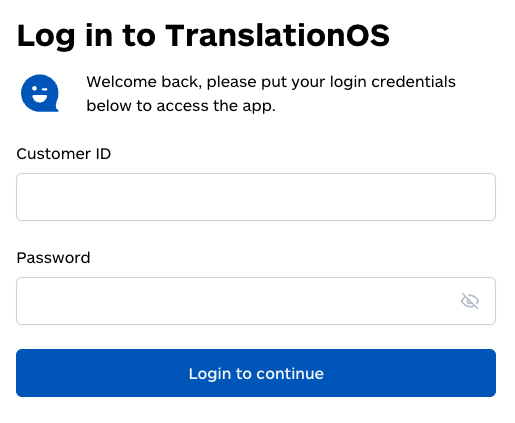
Log in to the intake manager
Use your TranslationOS credentials.
Sign in with your TranslationOS customer ID
2
Choose the view
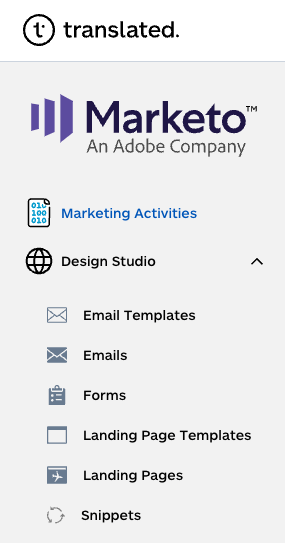
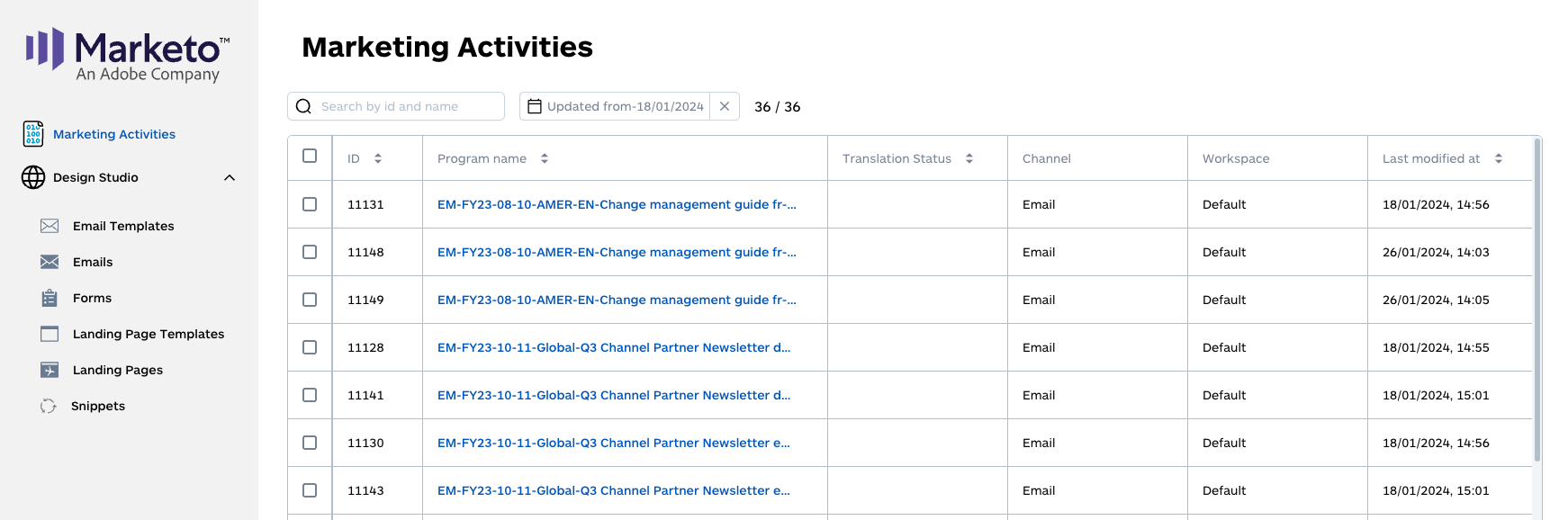
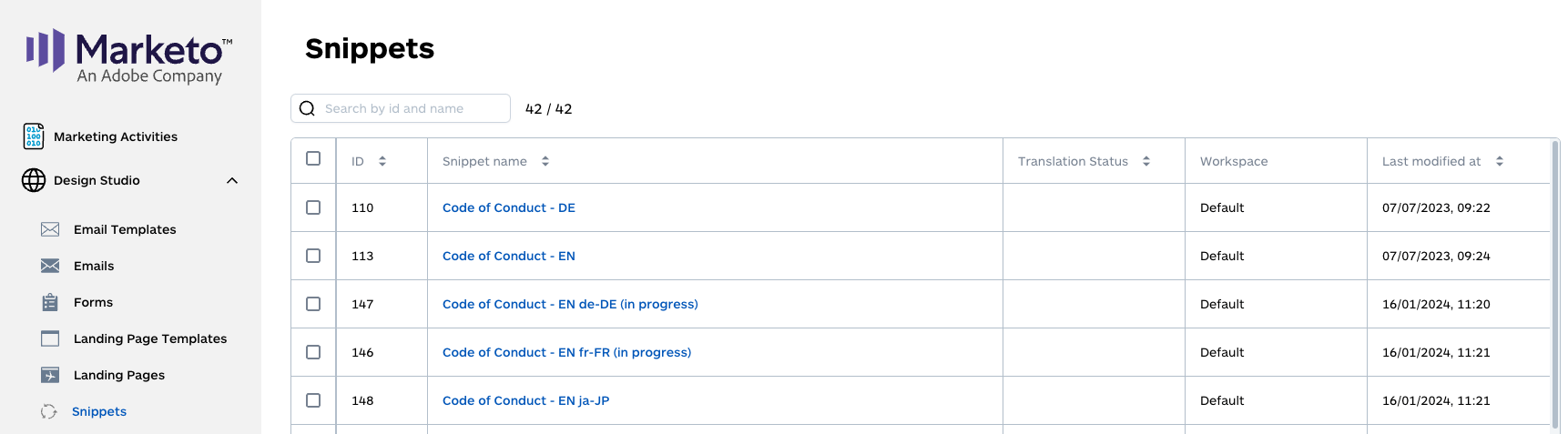
In the sidebar, choose Marketing Activities for campaigns or Design Studio for assets.
Marketing Activities and Design Studio are separate views
Marketing Activities lists your programs
Design Studio splits assets by type
3
Select the items to translate
4
Create the order
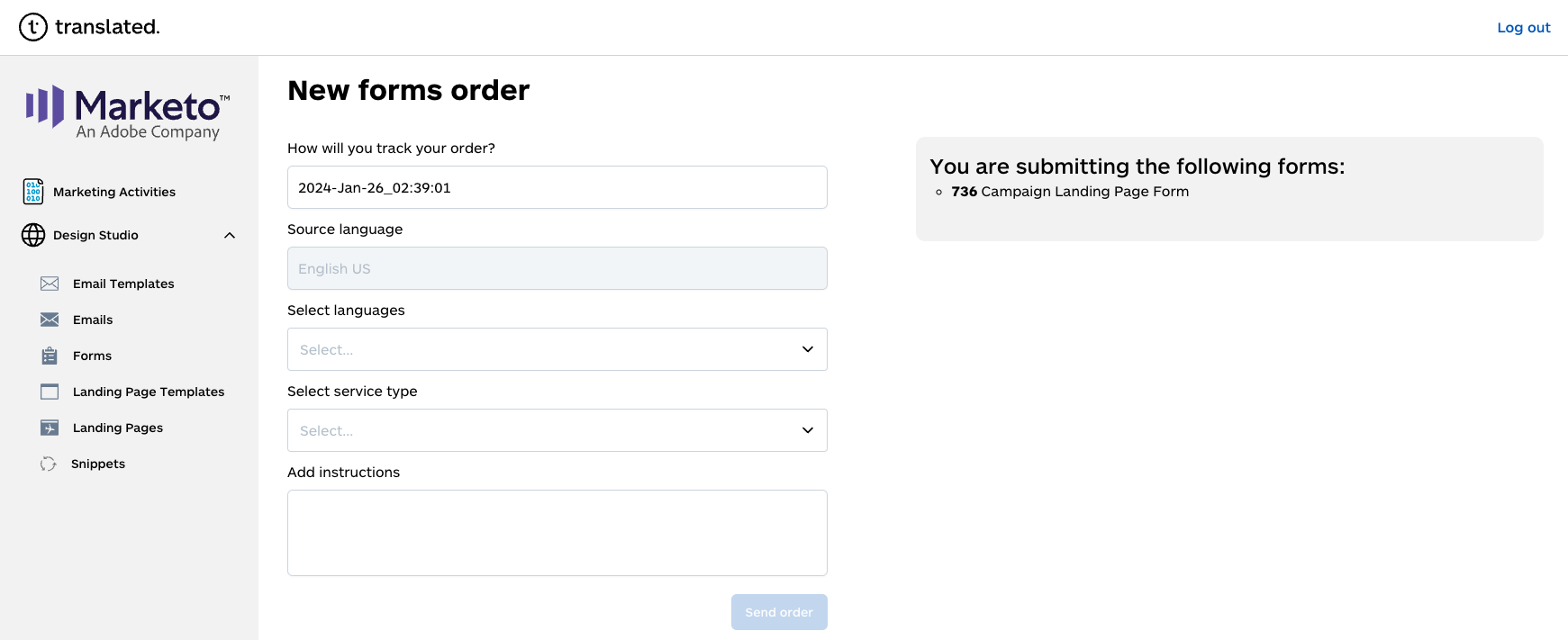
Click New order and complete the form.
The order form, with the tracking field at the top
5
Submit
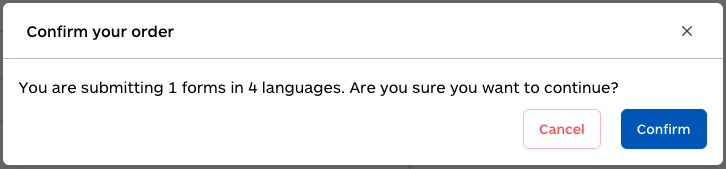
Click Send order, then Confirm.
A last check before the order goes
Design Studio orders can include only one asset type at a time. Mixed selections have to be split into separate orders.
Finding your content
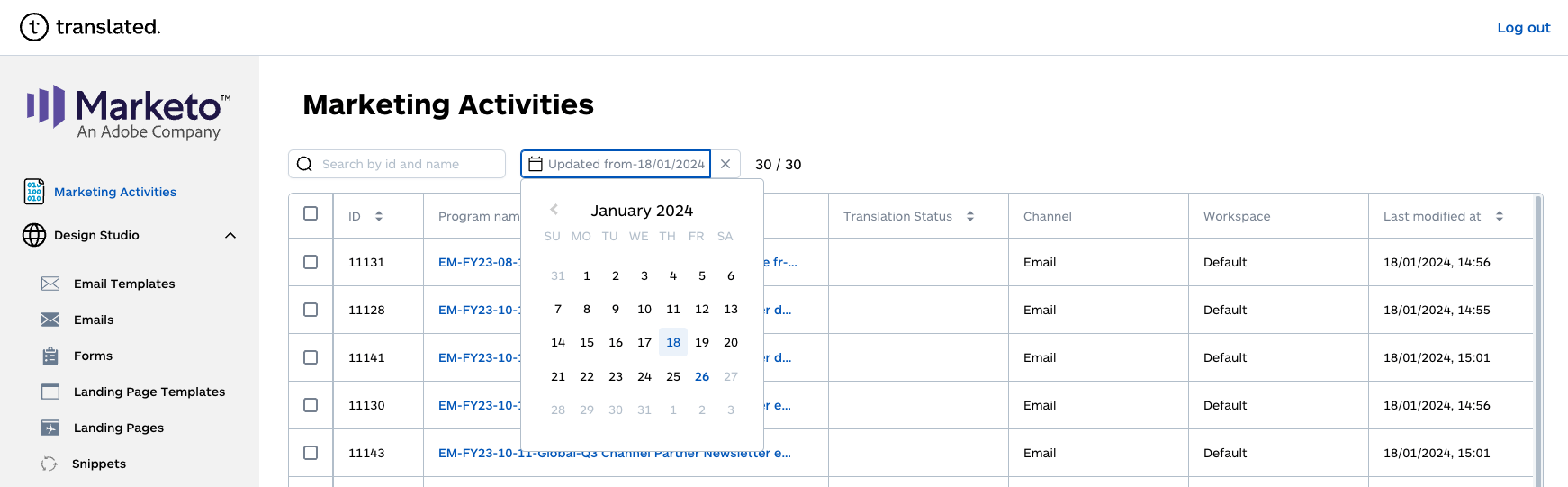
Marketing Activities filters by last modified date, and not all results appear by default. Set the date filter deliberately rather than assuming the list is complete. This catches people out on older campaigns.
The last modified filter decides what you see
The order tracking field
The form asks how you will track your order. What you type becomes the order group ID in TranslationOS, defaulting to the current date and time.Use something you will recognise later, such as the campaign name or a quarter reference.
Following progress
The originals are cloned in Marketo with the target language code appended, for example Campaign ja-JP. Duplicate names get a numeric suffix. (in progress) is appended while translation runs.The order status moves from queued to in progress once bucketing completes.In TranslationOS, search the Requests or Content views:
Content ID
Order ID
Marketing Activities
program:<program id>
Program name
Design Studio
<asset type>:<asset ID>
Asset name
Order group ID is your tracking value for both.
Receiving translations
When all requests are delivered, the translation status on the items clears and the cloned assets are populated with the translated content.The source assets are never modified.
Cancelling
Requests still in the queue can be cancelled on the TranslationOS dashboards. Everything else goes through your project manager.Cancelling does not remove clones already created in Marketo. Clean those up yourself.
Troubleshooting
I cannot find a campaign in the list
Adjust the last modified date filter. Not everything is shown by default.
My Design Studio order was rejected
You probably selected more than one asset type. Split the order.
The translated content is not on the original
It is not meant to be. The connector clones and fills the clone. Look for the asset with the language code appended.
There are several clones with numeric suffixes
Each order creates a new clone. The suffix distinguishes repeats. Remove the ones you no longer need.
Authentication failed
Check the LaunchPoint custom service still exists and its credentials have not been rotated.
FAQ
Does the connector modify our original assets?
No. It clones them and translates the clone.
Can we order campaigns and Design Studio assets together?
No. They are separate views, and Design Studio orders are limited to one asset type at a time.
What is the order group ID?
Your tracking value from the order form, defaulting to the timestamp. See Tracking IDs.
{"docsConfig":{"theme":"mint","$schema":"https://mintlify.com/docs.json","name":"TranslationOS","colors":{"primary":"#2985EC","light":"#94C5FE","dark":"#0055B8"},"logo":{"light":"https://mintcdn.com/translated/A02MktdeiyJy_IDR/logo/translationos-help-light.png?fit=max\u0026auto=format\u0026n=A02MktdeiyJy_IDR\u0026q=85\u0026s=3b0464b16c152c0abfc72c2f24658c24","dark":"https://mintcdn.com/translated/A02MktdeiyJy_IDR/logo/translationos-help-dark.png?fit=max\u0026auto=format\u0026n=A02MktdeiyJy_IDR\u0026q=85\u0026s=bb054a81131ba466f71d9e3623ac5668","href":"/"},"favicon":{"light":"https://mintcdn.com/translated/rjYQ9-wgKIB21Erw/favicon.png?fit=max\u0026auto=format\u0026n=rjYQ9-wgKIB21Erw\u0026q=85\u0026s=49e26f94b6b943273a3dfb9f46ac80de","dark":"https://mintcdn.com/translated/rjYQ9-wgKIB21Erw/favicon-dark.png?fit=max\u0026auto=format\u0026n=rjYQ9-wgKIB21Erw\u0026q=85\u0026s=0f36351171cd8606b04210f40c8d3d51"},"appearance":{"default":"system","strict":false},"background":{"color":{"light":"#FFFFFF","dark":"#161618"}},"navbar":{"primary":{"type":"button","label":"Open TranslationOS","href":"https://os.translated.com"}},"footer":{"socials":{"website":"https://translated.com","linkedin":"https://www.linkedin.com/company/translated"}},"fonts":{"heading":{"family":"Inter","weight":600},"body":{"family":"Inter"}},"styling":{"eyebrows":"section","codeblocks":{"theme":{"light":"github-light","dark":"github-dark"}},"latex":false},"integrations":{"posthog":{"apiKey":"phc_sXLZBnf2hsgtJDJp5pUbR4ebMMxDk6m7Gg4H5p2pHaCE","apiHost":"https://os-ba.translated.com","sessionRecording":true}},"navigation":{"global":{"anchors":[{"anchor":"API reference","icon":"code","href":"https://api.translated.com/v2"},{"anchor":"Support","icon":"life-ring","href":"https://support.os.translated.com/"}]},"pages":[]}},"deployment":{"deploymentMetadataValue":{"subdomain":"translated","hasAudioNarration":false,"actualSubdomain":"translated","customDomains":["help.os.translated.com"],"gitSource":{"type":"github","owner":"translated","repo":"enterprise-product","deployBranch":"main","contentDirectory":"","isPrivate":true,"mountPath":"","label":"","_id":"6afe0f347fc61c3a7233ce61"},"entitlements":{"AI_CHAT":{"status":"ENABLED"},"WEB_MCP":{"status":"ENABLED"},"NARRATION":{"status":"ENABLED"}},"buildId":"6b05bbece6cf07776d988517","clientVersion":"0.0.4304","searchFilterCounts":[{"language":"default","tag":"Connectors","count":63},{"language":"default","tag":"Documentation","count":24},{"language":"default","tag":"Content management systems","count":15},{"language":"default","tag":"Translation management","count":12},{"language":"default","tag":"Marketing and messaging","count":12},{"language":"default","tag":"Support and service","count":9},{"language":"default","tag":"The platform","count":9},{"language":"default","tag":"Design and forms","count":7},{"language":"default","tag":"Start here","count":7},{"language":"default","tag":"About connectors","count":5}],"searchSettings":{"fullPageSearch":true,"showContentSnippets":true,"isFiltersEnabled":true}},"assistantConfig":{"enableAskAiButton":false,"enableStarterQuestions":false,"enableContextualStarterQuestions":false,"enableAskAiSearchBar":true},"basePath":"","hasChatPermissions":false,"hasWebMcpPermissions":true,"toggles":[{"name":"kill-isr","enabled":true,"variant":{"name":"disabled","enabled":false,"feature_enabled":true},"impressionData":false},{"name":"custom-rbac-roles","enabled":true,"variant":{"name":"disabled","enabled":false,"feature_enabled":true},"impressionData":false},{"name":"agent-mintlify-slack","enabled":true,"variant":{"name":"disabled","enabled":false,"feature_enabled":true},"impressionData":false},{"name":"agent-integrations-settings","enabled":true,"variant":{"name":"disabled","enabled":false,"feature_enabled":true},"impressionData":false},{"name":"rbac-expansion","enabled":true,"variant":{"name":"disabled","enabled":false,"feature_enabled":true},"impressionData":false},{"name":"automations-pr-grouping","enabled":true,"variant":{"name":"disabled","enabled":false,"feature_enabled":true},"impressionData":false},{"name":"custom-prefix","enabled":true,"variant":{"name":"disabled","enabled":false,"feature_enabled":true},"impressionData":false},{"name":"analytics-v7","enabled":true,"variant":{"name":"disabled","enabled":false,"feature_enabled":true},"impressionData":false},{"name":"user-flows-analytics","enabled":true,"variant":{"name":"disabled","enabled":false,"feature_enabled":true},"impressionData":false},{"name":"no-publish-flow","enabled":true,"variant":{"name":"disabled","enabled":false,"feature_enabled":true},"impressionData":false},{"name":"snapshot-serving-live","enabled":true,"variant":{"name":"disabled","enabled":false,"feature_enabled":true},"impressionData":false},{"name":"stripTemperatureMiddleware","enabled":true,"variant":{"name":"disabled","enabled":false,"feature_enabled":true},"impressionData":false},{"name":"support-platform-pylon-zendesk","enabled":true,"variant":{"name":"disabled","enabled":false,"feature_enabled":true},"impressionData":false},{"name":"snapshot-serving","enabled":true,"variant":{"name":"disabled","enabled":false,"feature_enabled":true},"impressionData":false},{"name":"instant-rollback","enabled":true,"variant":{"name":"disabled","enabled":false,"feature_enabled":true},"impressionData":false},{"name":"granular-notifications-server","enabled":true,"variant":{"name":"disabled","enabled":false,"feature_enabled":true},"impressionData":false},{"name":"granular-notifications","enabled":true,"variant":{"name":"disabled","enabled":false,"feature_enabled":true},"impressionData":false},{"name":"automations-fable","enabled":true,"variant":{"name":"disabled","enabled":false,"feature_enabled":true},"impressionData":false},{"name":"fixed-ai-action-pricing","enabled":true,"variant":{"name":"disabled","enabled":false,"feature_enabled":true},"impressionData":false},{"name":"site-roles","enabled":true,"variant":{"name":"disabled","enabled":false,"feature_enabled":true},"impressionData":false},{"name":"automation-resolve-merge-conflict","enabled":true,"variant":{"name":"disabled","enabled":false,"feature_enabled":true},"impressionData":false},{"name":"scoped-publishing","enabled":true,"variant":{"name":"disabled","enabled":false,"feature_enabled":true},"impressionData":false},{"name":"mintql","enabled":true,"variant":{"name":"disabled","enabled":false,"feature_enabled":true},"impressionData":false},{"name":"page-level-analytics","enabled":true,"variant":{"name":"disabled","enabled":false,"feature_enabled":true},"impressionData":false},{"name":"editor-version-history-v2","enabled":true,"variant":{"name":"disabled","enabled":false,"feature_enabled":true},"impressionData":false},{"name":"billing-page-v2","enabled":true,"variant":{"name":"disabled","enabled":false,"feature_enabled":true},"impressionData":false},{"name":"full-page-search","enabled":true,"variant":{"name":"disabled","enabled":false,"feature_enabled":true},"impressionData":false},{"name":"workspace-projects","enabled":true,"variant":{"name":"disabled","enabled":false,"feature_enabled":true},"impressionData":false},{"name":"fork-pr-previews","enabled":true,"variant":{"name":"disabled","enabled":false,"feature_enabled":true},"impressionData":false},{"name":"revalidation-jwt","enabled":true,"variant":{"name":"disabled","enabled":false,"feature_enabled":true},"impressionData":false},{"name":"hobby-abuse-scan","enabled":true,"variant":{"name":"disabled","enabled":false,"feature_enabled":true},"impressionData":false},{"name":"dashboard-inbox","enabled":true,"variant":{"name":"disabled","enabled":false,"feature_enabled":true},"impressionData":false},{"name":"turbopuffer-dual-write","enabled":true,"variant":{"name":"disabled","enabled":false,"feature_enabled":true},"impressionData":false},{"name":"approve-review-flow","enabled":true,"variant":{"name":"disabled","enabled":false,"feature_enabled":true},"impressionData":false},{"name":"editor-metadata","enabled":true,"variant":{"name":"disabled","enabled":false,"feature_enabled":true},"impressionData":false},{"name":"sso-setup-deadline-banner","enabled":true,"variant":{"name":"disabled","enabled":false,"feature_enabled":true},"impressionData":false},{"name":"turbopuffer-serve","enabled":true,"variant":{"name":"disabled","enabled":false,"feature_enabled":true},"impressionData":false},{"name":"live-agents","enabled":true,"variant":{"name":"disabled","enabled":false,"feature_enabled":true},"impressionData":false},{"name":"starter-pricing","enabled":true,"variant":{"name":"control","enabled":true,"payload":{"type":"string","value":"control"},"feature_enabled":true},"impressionData":false},{"name":"llms-txt-v2","enabled":true,"variant":{"name":"disabled","enabled":false,"feature_enabled":true},"impressionData":false},{"name":"wildcard-email-auth","enabled":true,"variant":{"name":"disabled","enabled":false,"feature_enabled":true},"impressionData":false}],"googleFontsInlined":false},"customCss":[{"filePath":"style.css","content":".tos-hero{background-image:linear-gradient(118deg, #0D02FC 0%, #0F43FB 45%, #029CFF 100%)}.tos-searchbox{box-shadow:0 10px 30px rgba(0, 12, 52, 0.18);transition:transform 120ms ease, box-shadow 120ms ease}.tos-searchbox:hover{transform:translateY(-1px);box-shadow:0 14px 36px rgba(0, 12, 52, 0.24)}html[data-current-path=\"/\"] #search-bar-entry{display:none}html.dark .tos-hero{background-image:linear-gradient(118deg, #0A17A8 0%, #0C31B0 45%, #0A72B0 100%)}html.dark .tos-searchbox{background:rgba(33, 33, 36, 0.80);color:#c9cdd4;box-shadow:0 10px 30px rgba(0, 0, 0, 0.35);backdrop-filter:blur(6px)}html.dark .tos-searchbox span{border-color:#3A3A40;color:#BDBDC3}html.dark main img{filter:brightness(0.9) contrast(0.98)}:root{--gray-50: 247 247 247;--gray-100: 238 238 239;--gray-200: 222 222 225;--gray-300: 189 189 195;--gray-400: 172 172 179;--gray-500: 151 151 159;--gray-600: 110 110 119;--gray-700: 58 58 64;--gray-800: 45 45 48;--gray-900: 33 33 36;--gray-950: 9 9 10}#sidebar,#navbar{background-color:rgb(var(--gray-50))}#sidebar{border-right:1px solid rgb(var(--gray-200))}html.dark #sidebar,html.dark #navbar{background-color:#09090a}html.dark #sidebar{border-right-color:#2d2d30}.card{background-color:rgb(var(--gray-50));border-color:rgb(var(--gray-200))}html.dark .card{background-color:#212124;border-color:#3a3a40}html.dark .accordion{background-color:#212124}.card,.accordion,.accordion-group,figure.frame{border-radius:0.75rem}pre{border-radius:0.625rem}html.dark .prose :where(p,li,td,blockquote,dd){color:rgb(208 208 213)}"}]}
{"page":{"pagePath":"connectors/marketo-engage/requesting-and-tracking","slug":"/connectors/marketo-engage/requesting-and-tracking","pageMetadata":{"title":"Requesting and tracking Marketo Engage translations","description":"Placing orders and following them through to delivery","sidebarTitle":"Request and track","href":"/connectors/marketo-engage/requesting-and-tracking"},"description":{"compiledSource":"\"use strict\";\nconst {jsx: _jsx} = arguments[0];\nconst {useMDXComponents: _provideComponents} = arguments[0];\nfunction _createMdxContent(props) {\n const _components = {\n p: \"p\",\n ..._provideComponents(),\n ...props.components\n };\n return _jsx(_components.p, {\n children: \"Placing orders and following them through to delivery\"\n });\n}\nfunction MDXContent(props = {}) {\n const {wrapper: MDXLayout} = {\n ..._provideComponents(),\n ...props.components\n };\n return MDXLayout ? _jsx(MDXLayout, {\n ...props,\n children: _jsx(_createMdxContent, {\n ...props\n })\n }) : _createMdxContent(props);\n}\nreturn {\n default: MDXContent\n};\n","frontmatter":{},"scope":{}},"pageType":"default","mdx":{"mdxSource":{"compiledSource":"\"use strict\";const{Fragment:_Fragment,jsx:_jsx,jsxs:_jsxs}=arguments[0];const{useMDXComponents:_provideComponents}=arguments[0];function _createMdxContent(props){const _components={a:`a`,code:`code`,p:`p`,strong:`strong`,tbody:`tbody`,td:`td`,th:`th`,thead:`thead`,tr:`tr`,..._provideComponents(),...props.components},{Accordion,AccordionGroup,Frame,Heading,OptimizedImage,Step,Steps,Table,Warning}=_components;if(!Accordion)_missingMdxReference(`Accordion`,true);if(!AccordionGroup)_missingMdxReference(`AccordionGroup`,true);if(!Frame)_missingMdxReference(`Frame`,true);if(!Heading)_missingMdxReference(`Heading`,true);if(!OptimizedImage)_missingMdxReference(`OptimizedImage`,true);if(!Step)_missingMdxReference(`Step`,true);if(!Steps)_missingMdxReference(`Steps`,true);if(!Table)_missingMdxReference(`Table`,true);if(!Warning)_missingMdxReference(`Warning`,true);return _jsxs(_Fragment,{children:[_jsx(_components.p,{children:`For marketing and localisation teams.`}),`\n`,_jsx(Heading,{level:`2`,id:`placing-an-order`,children:`Placing an order`}),`\n`,_jsxs(Steps,{children:[_jsxs(Step,{title:`Log in to the intake manager`,children:[_jsx(_components.p,{children:`Use your TranslationOS credentials.`}),_jsx(Frame,{caption:`Sign in with your TranslationOS customer ID`,children:_jsx(OptimizedImage,{src:`https://mintcdn.com/translated/gGNzYLkyAQNMi7dz/images/marketo-engage/login.png?fit=max\u0026auto=format\u0026n=gGNzYLkyAQNMi7dz\u0026q=85\u0026s=60ad1c53773007c798d7a25be2208861`,alt:`The intake manager login screen`,\"data-og-width\":`515`,width:`515`,\"data-og-height\":`423`,height:`423`,\"data-path\":`images/marketo-engage/login.png`,\"data-optimize\":`true`,\"data-opv\":`3`,srcset:`https://mintcdn.com/translated/gGNzYLkyAQNMi7dz/images/marketo-engage/login.png?w=280\u0026fit=max\u0026auto=format\u0026n=gGNzYLkyAQNMi7dz\u0026q=85\u0026s=cbeeee452e657c93e5c374426d18401d 280w, https://mintcdn.com/translated/gGNzYLkyAQNMi7dz/images/marketo-engage/login.png?w=560\u0026fit=max\u0026auto=format\u0026n=gGNzYLkyAQNMi7dz\u0026q=85\u0026s=2132938354c792908fb9cd93713d63a2 560w, https://mintcdn.com/translated/gGNzYLkyAQNMi7dz/images/marketo-engage/login.png?w=840\u0026fit=max\u0026auto=format\u0026n=gGNzYLkyAQNMi7dz\u0026q=85\u0026s=ac54b33faf8f167c34f06da729183f49 840w, https://mintcdn.com/translated/gGNzYLkyAQNMi7dz/images/marketo-engage/login.png?w=1100\u0026fit=max\u0026auto=format\u0026n=gGNzYLkyAQNMi7dz\u0026q=85\u0026s=a12a78fb1c9de5e0d5ea83eeb6bf7c55 1100w, https://mintcdn.com/translated/gGNzYLkyAQNMi7dz/images/marketo-engage/login.png?w=1650\u0026fit=max\u0026auto=format\u0026n=gGNzYLkyAQNMi7dz\u0026q=85\u0026s=639cb9a53afd70795be40d5af5590031 1650w, https://mintcdn.com/translated/gGNzYLkyAQNMi7dz/images/marketo-engage/login.png?w=2500\u0026fit=max\u0026auto=format\u0026n=gGNzYLkyAQNMi7dz\u0026q=85\u0026s=d803e36c7c51e839a2aab678e5f6b534 2500w`})})]}),_jsxs(Step,{title:`Choose the view`,children:[_jsxs(_components.p,{children:[`In the sidebar, choose `,_jsx(_components.strong,{children:`Marketing Activities`}),` for campaigns or `,_jsx(_components.strong,{children:`Design Studio`}),` for assets.`]}),_jsx(Frame,{caption:`Marketing Activities and Design Studio are separate views`,children:_jsx(OptimizedImage,{src:`https://mintcdn.com/translated/gGNzYLkyAQNMi7dz/images/marketo-engage/sidebar.png?fit=max\u0026auto=format\u0026n=gGNzYLkyAQNMi7dz\u0026q=85\u0026s=148b85c1ec8079858ee8c22a33e595f7`,alt:`The intake manager sidebar`,\"data-og-width\":`285`,width:`285`,\"data-og-height\":`543`,height:`543`,\"data-path\":`images/marketo-engage/sidebar.png`,\"data-optimize\":`true`,\"data-opv\":`3`,srcset:`https://mintcdn.com/translated/gGNzYLkyAQNMi7dz/images/marketo-engage/sidebar.png?w=280\u0026fit=max\u0026auto=format\u0026n=gGNzYLkyAQNMi7dz\u0026q=85\u0026s=c51cd20150d8192c191c13768cd90212 280w, https://mintcdn.com/translated/gGNzYLkyAQNMi7dz/images/marketo-engage/sidebar.png?w=560\u0026fit=max\u0026auto=format\u0026n=gGNzYLkyAQNMi7dz\u0026q=85\u0026s=f98e868d480e9311ccc8c75a341a9d0a 560w, https://mintcdn.com/translated/gGNzYLkyAQNMi7dz/images/marketo-engage/sidebar.png?w=840\u0026fit=max\u0026auto=format\u0026n=gGNzYLkyAQNMi7dz\u0026q=85\u0026s=5acf1751e07b5f3c3891a6536ef3b168 840w, https://mintcdn.com/translated/gGNzYLkyAQNMi7dz/images/marketo-engage/sidebar.png?w=1100\u0026fit=max\u0026auto=format\u0026n=gGNzYLkyAQNMi7dz\u0026q=85\u0026s=83c7eb05809190fbd97318b3741194e8 1100w, https://mintcdn.com/translated/gGNzYLkyAQNMi7dz/images/marketo-engage/sidebar.png?w=1650\u0026fit=max\u0026auto=format\u0026n=gGNzYLkyAQNMi7dz\u0026q=85\u0026s=01f78d77d065140021f866828bf9acfa 1650w, https://mintcdn.com/translated/gGNzYLkyAQNMi7dz/images/marketo-engage/sidebar.png?w=2500\u0026fit=max\u0026auto=format\u0026n=gGNzYLkyAQNMi7dz\u0026q=85\u0026s=71e12dbcb0008cbf7c22ede85c6835a6 2500w`})}),_jsx(Frame,{caption:`Marketing Activities lists your programs`,children:_jsx(OptimizedImage,{src:`https://mintcdn.com/translated/gGNzYLkyAQNMi7dz/images/marketo-engage/marketing-activities.png?fit=max\u0026auto=format\u0026n=gGNzYLkyAQNMi7dz\u0026q=85\u0026s=a05d4600a3c0083c5d2697457b4df5bb`,alt:`The Marketing Activities list`,\"data-og-width\":`1742`,width:`1742`,\"data-og-height\":`578`,height:`578`,\"data-path\":`images/marketo-engage/marketing-activities.png`,\"data-optimize\":`true`,\"data-opv\":`3`,srcset:`https://mintcdn.com/translated/gGNzYLkyAQNMi7dz/images/marketo-engage/marketing-activities.png?w=280\u0026fit=max\u0026auto=format\u0026n=gGNzYLkyAQNMi7dz\u0026q=85\u0026s=ae7f987f05060b2752a380cd127e9c31 280w, https://mintcdn.com/translated/gGNzYLkyAQNMi7dz/images/marketo-engage/marketing-activities.png?w=560\u0026fit=max\u0026auto=format\u0026n=gGNzYLkyAQNMi7dz\u0026q=85\u0026s=660253c9579985bb635dd0e6ea1d78e9 560w, https://mintcdn.com/translated/gGNzYLkyAQNMi7dz/images/marketo-engage/marketing-activities.png?w=840\u0026fit=max\u0026auto=format\u0026n=gGNzYLkyAQNMi7dz\u0026q=85\u0026s=b341067c42c69d2b6f21d0cdd3150238 840w, https://mintcdn.com/translated/gGNzYLkyAQNMi7dz/images/marketo-engage/marketing-activities.png?w=1100\u0026fit=max\u0026auto=format\u0026n=gGNzYLkyAQNMi7dz\u0026q=85\u0026s=c5460ce25451bb36fd0b780a8b9d48b3 1100w, https://mintcdn.com/translated/gGNzYLkyAQNMi7dz/images/marketo-engage/marketing-activities.png?w=1650\u0026fit=max\u0026auto=format\u0026n=gGNzYLkyAQNMi7dz\u0026q=85\u0026s=47deb814d9545e2c0ead974aec3aba0f 1650w, https://mintcdn.com/translated/gGNzYLkyAQNMi7dz/images/marketo-engage/marketing-activities.png?w=2500\u0026fit=max\u0026auto=format\u0026n=gGNzYLkyAQNMi7dz\u0026q=85\u0026s=d0f668ee583996d0ed92111d6199b66c 2500w`})}),_jsx(Frame,{caption:`Design Studio splits assets by type`,children:_jsx(OptimizedImage,{src:`https://mintcdn.com/translated/gGNzYLkyAQNMi7dz/images/marketo-engage/design-studio.png?fit=max\u0026auto=format\u0026n=gGNzYLkyAQNMi7dz\u0026q=85\u0026s=7affa4e878608479c2a690e303ab97d6`,alt:`The Design Studio snippets list`,\"data-og-width\":`1722`,width:`1722`,\"data-og-height\":`477`,height:`477`,\"data-path\":`images/marketo-engage/design-studio.png`,\"data-optimize\":`true`,\"data-opv\":`3`,srcset:`https://mintcdn.com/translated/gGNzYLkyAQNMi7dz/images/marketo-engage/design-studio.png?w=280\u0026fit=max\u0026auto=format\u0026n=gGNzYLkyAQNMi7dz\u0026q=85\u0026s=0d0a7d0adea286baba7c09d52a84dac6 280w, https://mintcdn.com/translated/gGNzYLkyAQNMi7dz/images/marketo-engage/design-studio.png?w=560\u0026fit=max\u0026auto=format\u0026n=gGNzYLkyAQNMi7dz\u0026q=85\u0026s=e0bd5e3294627a8177fee9cfa61c5875 560w, https://mintcdn.com/translated/gGNzYLkyAQNMi7dz/images/marketo-engage/design-studio.png?w=840\u0026fit=max\u0026auto=format\u0026n=gGNzYLkyAQNMi7dz\u0026q=85\u0026s=3d1e41d69e3058bb1a3edd2829a178bf 840w, https://mintcdn.com/translated/gGNzYLkyAQNMi7dz/images/marketo-engage/design-studio.png?w=1100\u0026fit=max\u0026auto=format\u0026n=gGNzYLkyAQNMi7dz\u0026q=85\u0026s=6bb751b4394c97221eeaccbdf8488430 1100w, https://mintcdn.com/translated/gGNzYLkyAQNMi7dz/images/marketo-engage/design-studio.png?w=1650\u0026fit=max\u0026auto=format\u0026n=gGNzYLkyAQNMi7dz\u0026q=85\u0026s=472d77a2ac184a7ef46f7ee82a29b7a2 1650w, https://mintcdn.com/translated/gGNzYLkyAQNMi7dz/images/marketo-engage/design-studio.png?w=2500\u0026fit=max\u0026auto=format\u0026n=gGNzYLkyAQNMi7dz\u0026q=85\u0026s=5cf138bb440fcb49a8ce49771779f53b 2500w`})})]}),_jsx(Step,{title:`Select the items to translate`}),_jsx(Frame,{caption:`Selecting items reveals New order`,children:_jsx(OptimizedImage,{src:`https://mintcdn.com/translated/gGNzYLkyAQNMi7dz/images/marketo-engage/new-order-button.png?fit=max\u0026auto=format\u0026n=gGNzYLkyAQNMi7dz\u0026q=85\u0026s=1bc402fc2187cef2e341cefb30f00360`,alt:`A forms list with one form selected and the New order button`,\"data-og-width\":`1741`,width:`1741`,\"data-og-height\":`552`,height:`552`,\"data-path\":`images/marketo-engage/new-order-button.png`,\"data-optimize\":`true`,\"data-opv\":`3`,srcset:`https://mintcdn.com/translated/gGNzYLkyAQNMi7dz/images/marketo-engage/new-order-button.png?w=280\u0026fit=max\u0026auto=format\u0026n=gGNzYLkyAQNMi7dz\u0026q=85\u0026s=3b3c7970a6aef2bd1df76777ed0a39bd 280w, https://mintcdn.com/translated/gGNzYLkyAQNMi7dz/images/marketo-engage/new-order-button.png?w=560\u0026fit=max\u0026auto=format\u0026n=gGNzYLkyAQNMi7dz\u0026q=85\u0026s=0a6e30675d323ef097e42e001d6ce2b0 560w, https://mintcdn.com/translated/gGNzYLkyAQNMi7dz/images/marketo-engage/new-order-button.png?w=840\u0026fit=max\u0026auto=format\u0026n=gGNzYLkyAQNMi7dz\u0026q=85\u0026s=e47512511c78c01dcd0e2c16b1fb3424 840w, https://mintcdn.com/translated/gGNzYLkyAQNMi7dz/images/marketo-engage/new-order-button.png?w=1100\u0026fit=max\u0026auto=format\u0026n=gGNzYLkyAQNMi7dz\u0026q=85\u0026s=f97eb38aa8abe14db80fc761046abc50 1100w, https://mintcdn.com/translated/gGNzYLkyAQNMi7dz/images/marketo-engage/new-order-button.png?w=1650\u0026fit=max\u0026auto=format\u0026n=gGNzYLkyAQNMi7dz\u0026q=85\u0026s=a4ca1253a9947a2d19b39f40ffc05dd2 1650w, https://mintcdn.com/translated/gGNzYLkyAQNMi7dz/images/marketo-engage/new-order-button.png?w=2500\u0026fit=max\u0026auto=format\u0026n=gGNzYLkyAQNMi7dz\u0026q=85\u0026s=d6525531ead59ee0c7d62e0d660b7715 2500w`})}),_jsxs(Step,{title:`Create the order`,children:[_jsxs(_components.p,{children:[`Click `,_jsx(_components.strong,{children:`New order`}),` and complete the form.`]}),_jsx(Frame,{caption:`The order form, with the tracking field at the top`,children:_jsx(OptimizedImage,{src:`https://mintcdn.com/translated/gGNzYLkyAQNMi7dz/images/marketo-engage/order-form.png?fit=max\u0026auto=format\u0026n=gGNzYLkyAQNMi7dz\u0026q=85\u0026s=1ba673976e41c380ca37f3614b48ebf6`,alt:`The new forms order screen`,\"data-og-width\":`1741`,width:`1741`,\"data-og-height\":`711`,height:`711`,\"data-path\":`images/marketo-engage/order-form.png`,\"data-optimize\":`true`,\"data-opv\":`3`,srcset:`https://mintcdn.com/translated/gGNzYLkyAQNMi7dz/images/marketo-engage/order-form.png?w=280\u0026fit=max\u0026auto=format\u0026n=gGNzYLkyAQNMi7dz\u0026q=85\u0026s=287c18ba226b788595fb2672191cb444 280w, https://mintcdn.com/translated/gGNzYLkyAQNMi7dz/images/marketo-engage/order-form.png?w=560\u0026fit=max\u0026auto=format\u0026n=gGNzYLkyAQNMi7dz\u0026q=85\u0026s=ed27e9039e48057d8baa6a3d12872daa 560w, https://mintcdn.com/translated/gGNzYLkyAQNMi7dz/images/marketo-engage/order-form.png?w=840\u0026fit=max\u0026auto=format\u0026n=gGNzYLkyAQNMi7dz\u0026q=85\u0026s=bc8ce9f553c0d0fb38b78d6d0e56a3a9 840w, https://mintcdn.com/translated/gGNzYLkyAQNMi7dz/images/marketo-engage/order-form.png?w=1100\u0026fit=max\u0026auto=format\u0026n=gGNzYLkyAQNMi7dz\u0026q=85\u0026s=d3b44a361e4075f4178ba5603a323e75 1100w, https://mintcdn.com/translated/gGNzYLkyAQNMi7dz/images/marketo-engage/order-form.png?w=1650\u0026fit=max\u0026auto=format\u0026n=gGNzYLkyAQNMi7dz\u0026q=85\u0026s=a1ee3e565b080ead1d3ae61995975065 1650w, https://mintcdn.com/translated/gGNzYLkyAQNMi7dz/images/marketo-engage/order-form.png?w=2500\u0026fit=max\u0026auto=format\u0026n=gGNzYLkyAQNMi7dz\u0026q=85\u0026s=63746de4102e36ffbeb9514a6769dd74 2500w`})})]}),_jsxs(Step,{title:`Submit`,children:[_jsxs(_components.p,{children:[`Click `,_jsx(_components.strong,{children:`Send order`}),`, then `,_jsx(_components.strong,{children:`Confirm`}),`.`]}),_jsx(Frame,{caption:`A last check before the order goes`,children:_jsx(OptimizedImage,{src:`https://mintcdn.com/translated/gGNzYLkyAQNMi7dz/images/marketo-engage/confirm-order.png?fit=max\u0026auto=format\u0026n=gGNzYLkyAQNMi7dz\u0026q=85\u0026s=574e528afc1216a83d2f5d02b9bee291`,alt:`The confirm your order dialog`,\"data-og-width\":`726`,width:`726`,\"data-og-height\":`169`,height:`169`,\"data-path\":`images/marketo-engage/confirm-order.png`,\"data-optimize\":`true`,\"data-opv\":`3`,srcset:`https://mintcdn.com/translated/gGNzYLkyAQNMi7dz/images/marketo-engage/confirm-order.png?w=280\u0026fit=max\u0026auto=format\u0026n=gGNzYLkyAQNMi7dz\u0026q=85\u0026s=90b381d0f3c295f00a403ba2f0aaf24f 280w, https://mintcdn.com/translated/gGNzYLkyAQNMi7dz/images/marketo-engage/confirm-order.png?w=560\u0026fit=max\u0026auto=format\u0026n=gGNzYLkyAQNMi7dz\u0026q=85\u0026s=2744d8d9bb70c3a24767c5215645bde8 560w, https://mintcdn.com/translated/gGNzYLkyAQNMi7dz/images/marketo-engage/confirm-order.png?w=840\u0026fit=max\u0026auto=format\u0026n=gGNzYLkyAQNMi7dz\u0026q=85\u0026s=cb5d5e817e6a751797b6b6045fbc67c3 840w, https://mintcdn.com/translated/gGNzYLkyAQNMi7dz/images/marketo-engage/confirm-order.png?w=1100\u0026fit=max\u0026auto=format\u0026n=gGNzYLkyAQNMi7dz\u0026q=85\u0026s=d8153abdfb356b97f423439605cd9861 1100w, https://mintcdn.com/translated/gGNzYLkyAQNMi7dz/images/marketo-engage/confirm-order.png?w=1650\u0026fit=max\u0026auto=format\u0026n=gGNzYLkyAQNMi7dz\u0026q=85\u0026s=6713867c8cf0e6a5ae5eda20e7501787 1650w, https://mintcdn.com/translated/gGNzYLkyAQNMi7dz/images/marketo-engage/confirm-order.png?w=2500\u0026fit=max\u0026auto=format\u0026n=gGNzYLkyAQNMi7dz\u0026q=85\u0026s=f4788250e7b783c3127f258353d3c36a 2500w`})})]})]}),`\n`,_jsx(Warning,{children:_jsx(_components.p,{children:`Design Studio orders can include only one asset type at a time. Mixed selections have to be split into separate orders.`})}),`\n`,_jsx(Heading,{level:`2`,id:`finding-your-content`,children:`Finding your content`}),`\n`,_jsx(_components.p,{children:`Marketing Activities filters by last modified date, and not all results appear by default. Set the date filter deliberately rather than assuming the list is complete. This catches people out on older campaigns.`}),`\n`,_jsx(Frame,{caption:`The last modified filter decides what you see`,children:_jsx(OptimizedImage,{src:`https://mintcdn.com/translated/gGNzYLkyAQNMi7dz/images/marketo-engage/date-filter.png?fit=max\u0026auto=format\u0026n=gGNzYLkyAQNMi7dz\u0026q=85\u0026s=8bc860eac8d6975fc7379e2a640ca25c`,alt:`The Marketing Activities list with the date filter open`,\"data-og-width\":`1742`,width:`1742`,\"data-og-height\":`541`,height:`541`,\"data-path\":`images/marketo-engage/date-filter.png`,\"data-optimize\":`true`,\"data-opv\":`3`,srcset:`https://mintcdn.com/translated/gGNzYLkyAQNMi7dz/images/marketo-engage/date-filter.png?w=280\u0026fit=max\u0026auto=format\u0026n=gGNzYLkyAQNMi7dz\u0026q=85\u0026s=52e33267944c8c8af66da3f5b7f2198b 280w, https://mintcdn.com/translated/gGNzYLkyAQNMi7dz/images/marketo-engage/date-filter.png?w=560\u0026fit=max\u0026auto=format\u0026n=gGNzYLkyAQNMi7dz\u0026q=85\u0026s=f3432ac54bf64eb0ea52151018ffc00b 560w, https://mintcdn.com/translated/gGNzYLkyAQNMi7dz/images/marketo-engage/date-filter.png?w=840\u0026fit=max\u0026auto=format\u0026n=gGNzYLkyAQNMi7dz\u0026q=85\u0026s=fd13cf88c62bba0e3323d3cff6fbd1db 840w, https://mintcdn.com/translated/gGNzYLkyAQNMi7dz/images/marketo-engage/date-filter.png?w=1100\u0026fit=max\u0026auto=format\u0026n=gGNzYLkyAQNMi7dz\u0026q=85\u0026s=c5c070fcd4a3c83f381faed7bd2c3b85 1100w, https://mintcdn.com/translated/gGNzYLkyAQNMi7dz/images/marketo-engage/date-filter.png?w=1650\u0026fit=max\u0026auto=format\u0026n=gGNzYLkyAQNMi7dz\u0026q=85\u0026s=b7f3c8e01a6410321e48406690c586cd 1650w, https://mintcdn.com/translated/gGNzYLkyAQNMi7dz/images/marketo-engage/date-filter.png?w=2500\u0026fit=max\u0026auto=format\u0026n=gGNzYLkyAQNMi7dz\u0026q=85\u0026s=5c746f7d3d6e405cb1265284ea438797 2500w`})}),`\n`,_jsx(Heading,{level:`2`,id:`the-order-tracking-field`,children:`The order tracking field`}),`\n`,_jsx(_components.p,{children:`The form asks how you will track your order. What you type becomes the order group ID in TranslationOS, defaulting to the current date and time.`}),`\n`,_jsx(_components.p,{children:`Use something you will recognise later, such as the campaign name or a quarter reference.`}),`\n`,_jsx(Heading,{level:`2`,id:`following-progress`,children:`Following progress`}),`\n`,_jsxs(_components.p,{children:[`The originals are cloned in Marketo with the target language code appended, for example `,_jsx(_components.code,{children:`Campaign ja-JP`}),`. Duplicate names get a numeric suffix. `,_jsx(_components.code,{children:`(in progress)`}),` is appended while translation runs.`]}),`\n`,_jsx(_components.p,{children:`The order status moves from queued to in progress once bucketing completes.`}),`\n`,_jsxs(_components.p,{children:[`In TranslationOS, search the `,_jsx(_components.strong,{children:`Requests`}),` or `,_jsx(_components.strong,{children:`Content`}),` views:`]}),`\n`,_jsxs(Table,{children:[_jsx(_components.thead,{children:_jsxs(_components.tr,{children:[_jsx(_components.th,{}),_jsx(_components.th,{children:`Content ID`}),_jsx(_components.th,{children:`Order ID`})]})}),_jsxs(_components.tbody,{children:[_jsxs(_components.tr,{children:[_jsx(_components.td,{children:`Marketing Activities`}),_jsx(_components.td,{children:_jsx(_components.code,{children:`program:\u003cprogram id>`})}),_jsx(_components.td,{children:`Program name`})]}),_jsxs(_components.tr,{children:[_jsx(_components.td,{children:`Design Studio`}),_jsx(_components.td,{children:_jsx(_components.code,{children:`\u003casset type>:\u003casset ID>`})}),_jsx(_components.td,{children:`Asset name`})]})]})]}),`\n`,_jsx(_components.p,{children:`Order group ID is your tracking value for both.`}),`\n`,_jsx(Heading,{level:`2`,id:`receiving-translations`,children:`Receiving translations`}),`\n`,_jsx(_components.p,{children:`When all requests are delivered, the translation status on the items clears and the cloned assets are populated with the translated content.`}),`\n`,_jsx(_components.p,{children:`The source assets are never modified.`}),`\n`,_jsx(Heading,{level:`2`,id:`cancelling`,children:`Cancelling`}),`\n`,_jsx(_components.p,{children:`Requests still in the queue can be cancelled on the TranslationOS dashboards. Everything else goes through your project manager.`}),`\n`,_jsx(_components.p,{children:`Cancelling does not remove clones already created in Marketo. Clean those up yourself.`}),`\n`,_jsx(Heading,{level:`2`,id:`troubleshooting`,children:`Troubleshooting`}),`\n`,_jsxs(AccordionGroup,{children:[_jsx(Accordion,{title:`I cannot find a campaign in the list`,id:`i-cannot-find-a-campaign-in-the-list`,children:_jsx(_components.p,{children:`Adjust the last modified date filter. Not everything is shown by default.`})}),_jsx(Accordion,{title:`My Design Studio order was rejected`,id:`my-design-studio-order-was-rejected`,children:_jsx(_components.p,{children:`You probably selected more than one asset type. Split the order.`})}),_jsx(Accordion,{title:`The translated content is not on the original`,id:`the-translated-content-is-not-on-the-original`,children:_jsx(_components.p,{children:`It is not meant to be. The connector clones and fills the clone. Look for the asset with the language code appended.`})}),_jsx(Accordion,{title:`There are several clones with numeric suffixes`,id:`there-are-several-clones-with-numeric-suffixes`,children:_jsx(_components.p,{children:`Each order creates a new clone. The suffix distinguishes repeats. Remove the ones you no longer need.`})}),_jsx(Accordion,{title:`Authentication failed`,id:`authentication-failed`,children:_jsx(_components.p,{children:`Check the LaunchPoint custom service still exists and its credentials have not been rotated.`})})]}),`\n`,_jsx(Heading,{level:`2`,id:`faq`,children:`FAQ`}),`\n`,_jsxs(AccordionGroup,{children:[_jsx(Accordion,{title:`Does the connector modify our original assets?`,id:`does-the-connector-modify-our-original-assets`,children:_jsx(_components.p,{children:`No. It clones them and translates the clone.`})}),_jsx(Accordion,{title:`Can we order campaigns and Design Studio assets together?`,id:`can-we-order-campaigns-and-design-studio-assets-together`,children:_jsx(_components.p,{children:`No. They are separate views, and Design Studio orders are limited to one asset type at a time.`})}),_jsx(Accordion,{title:`What is the order group ID?`,id:`what-is-the-order-group-id`,children:_jsxs(_components.p,{children:[`Your tracking value from the order form, defaulting to the timestamp. See `,_jsx(_components.a,{href:`/reference/tracking-ids`,children:`Tracking IDs`}),`.`]})})]})]})}function MDXContent(props={}){const{wrapper:MDXLayout}={..._provideComponents(),...props.components};return MDXLayout?_jsx(MDXLayout,{...props,children:_jsx(_createMdxContent,{...props})}):_createMdxContent(props)}return{default:MDXContent};function _missingMdxReference(id,component){throw new Error(`Expected `+(component?`component`:`object`)+\" `\"+id+\"` to be defined: you likely forgot to import, pass, or provide it.\")}","frontmatter":{},"scope":{"codeStyling":{"theme":{"light":"github-light","dark":"github-dark"}},"config":{},"pageMetadata":{"title":"Requesting and tracking Marketo Engage translations","description":"Placing orders and following them through to delivery","sidebarTitle":"Request and track","href":"/connectors/marketo-engage/requesting-and-tracking"}}},"mdxSourceWithNoJs":null},"mdxExtracts":{"tableOfContents":[{"title":"Placing an order","slug":"placing-an-order","depth":2,"children":[]},{"title":"Finding your content","slug":"finding-your-content","depth":2,"children":[]},{"title":"The order tracking field","slug":"the-order-tracking-field","depth":2,"children":[]},{"title":"Following progress","slug":"following-progress","depth":2,"children":[]},{"title":"Receiving translations","slug":"receiving-translations","depth":2,"children":[]},{"title":"Cancelling","slug":"cancelling","depth":2,"children":[]},{"title":"Troubleshooting","slug":"troubleshooting","depth":2,"children":[]},{"title":"FAQ","slug":"faq","depth":2,"children":[]}],"codeExamples":{}},"jsLinks":[],"subdomain":"translated","siteName":"TranslationOS","title":"Requesting and tracking Marketo Engage translations - TranslationOS","navMaps":{"firstHrefInVersion":{},"firstHrefInLanguage":{},"searchTabScopes":[{"tab":"Documentation"},{"tab":"Connectors"},{"tab":"Release notes"}]},"lastModified":"2026-11-19T13:29:24.002Z","originalFileLocation":"connectors/marketo-engage/requesting-and-tracking.mdx"},"headHtml":"\u003cscript data-mint-head>(function(){var d=document.documentElement,p=null;if(!p){try{p=localStorage.getItem(\"isDarkMode\")}catch(e){}if(p==='true')p='dark';else if(p==='false')p='light';if(p!=='light'\u0026\u0026p!=='dark'\u0026\u0026p!=='system')p=\"system\"}var r=p==='system'?(matchMedia(\"(prefers-color-scheme: dark)\").matches?'dark':'light'):p;d.classList.remove(r==='dark'?'light':'dark');d.classList.add(r);d.setAttribute(\"data-theme-preference\",p)})();\u003c/script>\u003cmeta data-mint-head name=\"description\" content=\"Placing orders and following them through to delivery\">\u003cmeta data-mint-head name=\"application-name\" content=\"TranslationOS\">\u003cmeta data-mint-head name=\"generator\" content=\"Mintlify\">\u003clink data-mint-head rel=\"icon\" type=\"image/png\" sizes=\"192x192\" href=\"/mintlify-assets/_mintlify/favicons/translated/f2nJOOBu-XendKiC/_generated/favicon/android-chrome-192x192.png\" media=\"(prefers-color-scheme: light)\">\u003clink data-mint-head rel=\"apple-touch-icon\" type=\"image/png\" sizes=\"180x180\" href=\"/mintlify-assets/_mintlify/favicons/translated/f2nJOOBu-XendKiC/_generated/favicon/apple-touch-icon.png\">\u003clink data-mint-head rel=\"icon\" type=\"image/png\" sizes=\"16x16\" href=\"/mintlify-assets/_mintlify/favicons/translated/f2nJOOBu-XendKiC/_generated/favicon/favicon-16x16.png\" media=\"(prefers-color-scheme: light)\">\u003clink data-mint-head rel=\"icon\" type=\"image/png\" sizes=\"32x32\" href=\"/mintlify-assets/_mintlify/favicons/translated/f2nJOOBu-XendKiC/_generated/favicon/favicon-32x32.png\" media=\"(prefers-color-scheme: light)\">\u003clink data-mint-head rel=\"shortcut icon\" type=\"image/x-icon\" href=\"/mintlify-assets/_mintlify/favicons/translated/f2nJOOBu-XendKiC/_generated/favicon/favicon.ico\" media=\"(prefers-color-scheme: light)\">\u003clink data-mint-head rel=\"icon\" type=\"image/png\" sizes=\"192x192\" href=\"/mintlify-assets/_mintlify/favicons/translated/f2nJOOBu-XendKiC/_generated/favicon-dark/android-chrome-192x192.png\" media=\"(prefers-color-scheme: dark)\">\u003clink data-mint-head rel=\"icon\" type=\"image/png\" sizes=\"16x16\" href=\"/mintlify-assets/_mintlify/favicons/translated/f2nJOOBu-XendKiC/_generated/favicon-dark/favicon-16x16.png\" media=\"(prefers-color-scheme: dark)\">\u003clink data-mint-head rel=\"icon\" type=\"image/png\" sizes=\"32x32\" href=\"/mintlify-assets/_mintlify/favicons/translated/f2nJOOBu-XendKiC/_generated/favicon-dark/favicon-32x32.png\" media=\"(prefers-color-scheme: dark)\">\u003clink data-mint-head rel=\"shortcut icon\" type=\"image/x-icon\" href=\"/mintlify-assets/_mintlify/favicons/translated/f2nJOOBu-XendKiC/_generated/favicon-dark/favicon.ico\" media=\"(prefers-color-scheme: dark)\">\u003cmeta data-mint-head property=\"og:title\" content=\"Requesting and tracking Marketo Engage translations - TranslationOS\">\u003cmeta data-mint-head property=\"og:description\" content=\"Placing orders and following them through to delivery\">\u003cmeta data-mint-head property=\"og:site_name\" content=\"TranslationOS\">\u003cmeta data-mint-head property=\"og:url\" content=\"https://help.os.translated.com/connectors/marketo-engage/requesting-and-tracking\">\u003cmeta data-mint-head property=\"og:type\" content=\"website\">\u003cmeta data-mint-head property=\"og:image\" content=\"https://translated.mintlify.site/_mintlify/api/og/v2?division=Marketo+Engage\u0026amp;title=Requesting+and+tracking+Marketo+Engage+translations\u0026amp;description=Placing+orders+and+following+them+through+to+delivery\u0026amp;theme=976a3389b5a4c638a9342905\u0026amp;signature=6a2b02f3b032ce4110aab541e1194ea4d41fe5842120d016c49775a5fefa2ace\">\u003cmeta data-mint-head property=\"og:image:width\" content=\"1200\">\u003cmeta data-mint-head property=\"og:image:height\" content=\"630\">\u003cmeta data-mint-head name=\"twitter:card\" content=\"summary_large_image\">\u003cmeta data-mint-head name=\"twitter:title\" content=\"Requesting and tracking Marketo Engage translations - TranslationOS\">\u003cmeta data-mint-head name=\"twitter:description\" content=\"Placing orders and following them through to delivery\">\u003cmeta data-mint-head name=\"twitter:image\" content=\"https://translated.mintlify.site/_mintlify/api/og/v2?division=Marketo+Engage\u0026amp;title=Requesting+and+tracking+Marketo+Engage+translations\u0026amp;description=Placing+orders+and+following+them+through+to+delivery\u0026amp;theme=976a3389b5a4c638a9342905\u0026amp;signature=6a2b02f3b032ce4110aab541e1194ea4d41fe5842120d016c49775a5fefa2ace\">\u003cmeta data-mint-head name=\"twitter:image:width\" content=\"1200\">\u003cmeta data-mint-head name=\"twitter:image:height\" content=\"630\">\u003cmeta data-mint-head name=\"msapplication-config\" content=\"/mintlify-assets/_mintlify/favicons/translated/f2nJOOBu-XendKiC/_generated/favicon/browserconfig.xml\">\u003cmeta data-mint-head name=\"apple-mobile-web-app-title\" content=\"TranslationOS\">\u003cmeta data-mint-head name=\"msapplication-TileColor\" content=\"#2985EC\">\u003clink data-mint-head rel=\"canonical\" href=\"https://help.os.translated.com/connectors/marketo-engage/requesting-and-tracking\">\u003clink data-mint-head rel=\"alternate\" type=\"application/xml\" href=\"/sitemap.xml\">\u003clink data-mint-head rel=\"alternate\" type=\"text/markdown\" href=\"/connectors/marketo-engage/requesting-and-tracking.md\">\u003cscript data-mint-head type=\"application/ld+json\">{\"@context\":\"https://schema.org\",\"@graph\":[{\"@type\":\"Organization\",\"@id\":\"https://help.os.translated.com/#organization\",\"name\":\"TranslationOS\",\"url\":\"https://help.os.translated.com\",\"logo\":{\"@type\":\"ImageObject\",\"url\":\"https://mintcdn.com/translated/A02MktdeiyJy_IDR/logo/translationos-help-light.png?fit=max\u0026auto=format\u0026n=A02MktdeiyJy_IDR\u0026q=85\u0026s=3b0464b16c152c0abfc72c2f24658c24\"}},{\"@type\":\"WebSite\",\"@id\":\"https://help.os.translated.com#website\",\"name\":\"TranslationOS\",\"url\":\"https://help.os.translated.com\",\"publisher\":{\"@id\":\"https://help.os.translated.com/#organization\"}},{\"@type\":\"WebPage\",\"@id\":\"https://help.os.translated.com/connectors/marketo-engage/requesting-and-tracking#webpage\",\"url\":\"https://help.os.translated.com/connectors/marketo-engage/requesting-and-tracking\",\"name\":\"Requesting and tracking Marketo Engage translations\",\"description\":\"Placing orders and following them through to delivery\",\"dateModified\":\"2026-11-19T13:29:24.002Z\",\"isPartOf\":{\"@id\":\"https://help.os.translated.com#website\"},\"breadcrumb\":{\"@id\":\"https://help.os.translated.com/connectors/marketo-engage/requesting-and-tracking#breadcrumb\"}},{\"@type\":\"BreadcrumbList\",\"@id\":\"https://help.os.translated.com/connectors/marketo-engage/requesting-and-tracking#breadcrumb\",\"itemListElement\":[{\"@type\":\"ListItem\",\"position\":1,\"name\":\"Marketing and messaging\",\"item\":\"https://help.os.translated.com/connectors/iterable/overview\"},{\"@type\":\"ListItem\",\"position\":2,\"name\":\"Marketo Engage\",\"item\":\"https://help.os.translated.com/connectors/marketo-engage/overview\"},{\"@type\":\"ListItem\",\"position\":3,\"name\":\"Requesting and tracking Marketo Engage translations\",\"item\":\"https://help.os.translated.com/connectors/marketo-engage/requesting-and-tracking\"}]},{\"@type\":[\"Article\",\"TechArticle\"],\"@id\":\"https://help.os.translated.com/connectors/marketo-engage/requesting-and-tracking#article\",\"headline\":\"Requesting and tracking Marketo Engage translations\",\"name\":\"Requesting and tracking Marketo Engage translations\",\"description\":\"Placing orders and following them through to delivery\",\"url\":\"https://help.os.translated.com/connectors/marketo-engage/requesting-and-tracking\",\"mainEntityOfPage\":{\"@id\":\"https://help.os.translated.com/connectors/marketo-engage/requesting-and-tracking#webpage\"},\"dateModified\":\"2026-11-19T13:29:24.002Z\",\"publisher\":{\"@id\":\"https://help.os.translated.com/#organization\"},\"isPartOf\":{\"@id\":\"https://help.os.translated.com#website\"}}]}\u003c/script>\u003cscript data-mint-head type=\"application/ld+json\">{\"@context\":\"https://schema.org\",\"@type\":\"WebSite\",\"name\":\"TranslationOS\",\"publisher\":{\"@type\":\"Organization\",\"name\":\"TranslationOS\"},\"provider\":{\"@type\":\"Organization\",\"name\":\"Mintlify\",\"url\":\"https://mintlify.com\"}}\u003c/script>","agentPointerHref":"/connectors/marketo-engage/requesting-and-tracking.md","siteName":"TranslationOS","nav":{"global":{"anchors":[{"anchor":"API reference","icon":"code","href":"https://api.translated.com/v2"},{"anchor":"Support","icon":"life-ring","href":"https://support.os.translated.com/"}]},"tabs":[{"tab":"Documentation","pages":[{"title":"Documentation","href":""}]},{"tab":"Connectors","groups":[{"group":"About connectors","icon":"circle-info","pages":[{"title":"What connectors do","href":"/connectors/what-connectors-do"},{"title":"How connectors work","href":"/connectors/how-connectors-work"},{"title":"Choosing a connector","href":"/connectors/choosing-a-connector"},{"title":"All connectors","href":"/connectors/all-connectors"},{"title":"Requesting a connector","href":"/connectors/requesting-a-connector"}]},{"group":"Content management systems","icon":"layer-group","pages":[{"group":"Adobe Experience Manager","expanded":false,"pages":[{"title":"Adobe Experience Manager connector","sidebarTitle":"Overview","href":"/connectors/adobe-aem/overview"},{"title":"Setting up the Adobe Experience Manager connector","sidebarTitle":"Set up","href":"/connectors/adobe-aem/setup"},{"title":"Requesting and tracking Adobe Experience Manager translations","sidebarTitle":"Request and track","href":"/connectors/adobe-aem/requesting-and-tracking"}]},{"group":"Contentful","expanded":false,"pages":[{"title":"Contentful connector","sidebarTitle":"Overview","href":"/connectors/contentful/overview"},{"title":"Setting up the Contentful connector","sidebarTitle":"Set up","href":"/connectors/contentful/setup"},{"title":"Requesting and tracking Contentful translations","sidebarTitle":"Request and track","href":"/connectors/contentful/requesting-and-tracking"}]},{"group":"Contentstack","expanded":false,"pages":[{"title":"Contentstack connector","sidebarTitle":"Overview","href":"/connectors/contentstack/overview"},{"title":"Setting up the Contentstack connector","sidebarTitle":"Set up","href":"/connectors/contentstack/setup"},{"title":"Requesting and tracking Contentstack translations","sidebarTitle":"Request and track","href":"/connectors/contentstack/requesting-and-tracking"}]},{"group":"Sanity Studio","expanded":false,"pages":[{"title":"Sanity Studio connector","sidebarTitle":"Overview","href":"/connectors/sanity-studio/overview"},{"title":"Setting up the Sanity Studio connector","sidebarTitle":"Set up","href":"/connectors/sanity-studio/setup"},{"title":"Requesting and tracking Sanity translations","sidebarTitle":"Request and track","href":"/connectors/sanity-studio/requesting-and-tracking"}]},{"group":"WPML","expanded":false,"pages":[{"title":"WPML connector","sidebarTitle":"Overview","href":"/connectors/wpml/overview"},{"title":"Setting up the WPML connector","sidebarTitle":"Set up","href":"/connectors/wpml/setup"},{"title":"Requesting and tracking WPML translations","sidebarTitle":"Request and track","href":"/connectors/wpml/requesting-and-tracking"}]}]},{"group":"Code repositories","icon":"code-branch","pages":[{"group":"GitHub and GitLab","expanded":false,"pages":[{"title":"GitHub and GitLab connector","sidebarTitle":"Overview","href":"/connectors/github-gitlab/overview"},{"title":"Setting up the GitHub and GitLab connector","sidebarTitle":"Set up","href":"/connectors/github-gitlab/setup"},{"title":"Requesting and tracking repository translations","sidebarTitle":"Request and track","href":"/connectors/github-gitlab/requesting-and-tracking"}]}]},{"group":"Translation management","icon":"language","pages":[{"group":"Crowdin Enterprise","expanded":false,"pages":[{"title":"Crowdin Enterprise connector","sidebarTitle":"Overview","href":"/connectors/crowdin-enterprise/overview"},{"title":"Setting up the Crowdin Enterprise connector","sidebarTitle":"Set up","href":"/connectors/crowdin-enterprise/setup"},{"title":"Requesting and tracking Crowdin translations","sidebarTitle":"Request and track","href":"/connectors/crowdin-enterprise/requesting-and-tracking"}]},{"group":"Lokalise","expanded":false,"pages":[{"title":"Lokalise connector","sidebarTitle":"Overview","href":"/connectors/lokalise/overview"},{"title":"Setting up the Lokalise connector","sidebarTitle":"Set up","href":"/connectors/lokalise/setup"},{"title":"Requesting and tracking Lokalise translations","sidebarTitle":"Request and track","href":"/connectors/lokalise/requesting-and-tracking"}]},{"group":"Phrase TMS","expanded":false,"pages":[{"title":"Phrase TMS connector","sidebarTitle":"Overview","href":"/connectors/phrase-tms/overview"},{"title":"Setting up the Phrase TMS connector","sidebarTitle":"Set up","href":"/connectors/phrase-tms/setup"},{"title":"Requesting and tracking Phrase TMS translations","sidebarTitle":"Request and track","href":"/connectors/phrase-tms/requesting-and-tracking"}]},{"group":"XTM","expanded":false,"pages":[{"title":"XTM connector","sidebarTitle":"Overview","href":"/connectors/xtm/overview"},{"title":"Setting up the XTM connector","sidebarTitle":"Set up","href":"/connectors/xtm/setup"},{"title":"Requesting and tracking XTM translations","sidebarTitle":"Request and track","href":"/connectors/xtm/requesting-and-tracking"}]}]},{"group":"Marketing and messaging","icon":"bullhorn","pages":[{"group":"Iterable","expanded":false,"pages":[{"title":"Iterable connector","sidebarTitle":"Overview","href":"/connectors/iterable/overview"},{"title":"Setting up the Iterable connector","sidebarTitle":"Set up","href":"/connectors/iterable/setup"},{"title":"Requesting and tracking Iterable translations","sidebarTitle":"Request and track","href":"/connectors/iterable/requesting-and-tracking"}]},{"group":"Marketo Engage","expanded":false,"pages":[{"title":"Marketo Engage connector","sidebarTitle":"Overview","href":"/connectors/marketo-engage/overview"},{"title":"Setting up the Marketo Engage connector","description":"Retrieving credentials and configuring the connector","sidebarTitle":"Set up","href":"/connectors/marketo-engage/setup"},{"title":"Requesting and tracking Marketo Engage translations","sidebarTitle":"Request and track","href":"/connectors/marketo-engage/requesting-and-tracking"}]},{"group":"Salesforce Marketing Cloud","expanded":false,"pages":[{"title":"Salesforce Marketing Cloud connector","description":"What the Salesforce Marketing Cloud connector does, what it translates, and how translations come back","sidebarTitle":"Overview","href":"/connectors/salesforce-marketing-cloud/overview"},{"title":"Setting up the Salesforce Marketing Cloud connector","sidebarTitle":"Set up","href":"/connectors/salesforce-marketing-cloud/setup"},{"title":"Requesting and tracking Marketing Cloud translations","sidebarTitle":"Request and track","href":"/connectors/salesforce-marketing-cloud/requesting-and-tracking"}]},{"group":"SendGrid","expanded":false,"pages":[{"title":"SendGrid connector","sidebarTitle":"Overview","href":"/connectors/sendgrid/overview"},{"title":"Setting up the SendGrid connector","sidebarTitle":"Set up","href":"/connectors/sendgrid/setup"},{"title":"Requesting and tracking SendGrid translations","sidebarTitle":"Request and track","href":"/connectors/sendgrid/requesting-and-tracking"}]}]},{"group":"Support and service","icon":"headset","pages":[{"group":"Salesforce Knowledge","expanded":false,"pages":[{"title":"Salesforce Knowledge connector","sidebarTitle":"Overview","href":"/connectors/salesforce-knowledge/overview"},{"title":"Setting up the Salesforce Knowledge connector","sidebarTitle":"Set up","href":"/connectors/salesforce-knowledge/setup"},{"title":"Requesting and tracking Salesforce Knowledge translations","sidebarTitle":"Request and track","href":"/connectors/salesforce-knowledge/requesting-and-tracking"}]},{"group":"Zendesk","expanded":false,"pages":[{"title":"Zendesk connector","sidebarTitle":"Overview","href":"/connectors/zendesk/overview"},{"title":"Setting up the Zendesk connector","sidebarTitle":"Set up","href":"/connectors/zendesk/setup"},{"title":"Requesting and tracking Zendesk translations","sidebarTitle":"Request and track","href":"/connectors/zendesk/requesting-and-tracking"}]},{"group":"Zendesk Intake Manager","expanded":false,"pages":[{"title":"Zendesk IM connector","sidebarTitle":"Overview","href":"/connectors/zendesk-im/overview"},{"title":"Setting up the Zendesk IM connector","sidebarTitle":"Set up","href":"/connectors/zendesk-im/setup"},{"title":"Requesting and tracking Zendesk IM translations","sidebarTitle":"Request and track","href":"/connectors/zendesk-im/requesting-and-tracking"}]}]},{"group":"Design and forms","icon":"pen-ruler","pages":[{"group":"Figma","expanded":false,"pages":[{"title":"Figma plugin","sidebarTitle":"Overview","href":"/connectors/figma/overview"},{"title":"Setting up the Figma plugin","sidebarTitle":"Set up","href":"/connectors/figma/setup"},{"title":"Requesting and tracking Figma translations","sidebarTitle":"Request and track","href":"/connectors/figma/requesting-and-tracking"}]},{"title":"Figma Buzz","sidebarTitle":"Figma Buzz","href":"/connectors/figma-buzz/overview"},{"group":"Typeform","expanded":false,"pages":[{"title":"Typeform connector","sidebarTitle":"Overview","href":"/connectors/typeform/overview"},{"title":"Setting up the Typeform connector","sidebarTitle":"Set up","href":"/connectors/typeform/setup"},{"title":"Requesting and tracking Typeform translations","sidebarTitle":"Request and track","href":"/connectors/typeform/requesting-and-tracking"}]}]}]},{"tab":"Release notes","pages":[{"title":"Release notes","href":"/changelog"}]}]},"basePath":"","title":"Requesting and tracking Marketo Engage translations - TranslationOS","deploymentId":"dpl_57NA6NKtrcUBhuxv6Tm2hAi21TK4","buildId":"dpl_57NA6NKtrcUBhuxv6Tm2hAi21TK4","dynamics":["07c022d89b","a74be98ba7"],"chunks":["Frame-C7yGukkT.js","DynamicMarkdown-XsrWkK-b.js","zoom-image-lightbox-C5J5Gw3i.js","lightbox-handle-r17bVUz3.js"]}