

Selecting content
Open the Translate tab
Select the content
Check the layer list
Decide on hidden layers
Human translation
Continue and choose human translation
Select a service type
Set the source and target languages
Add details, optional
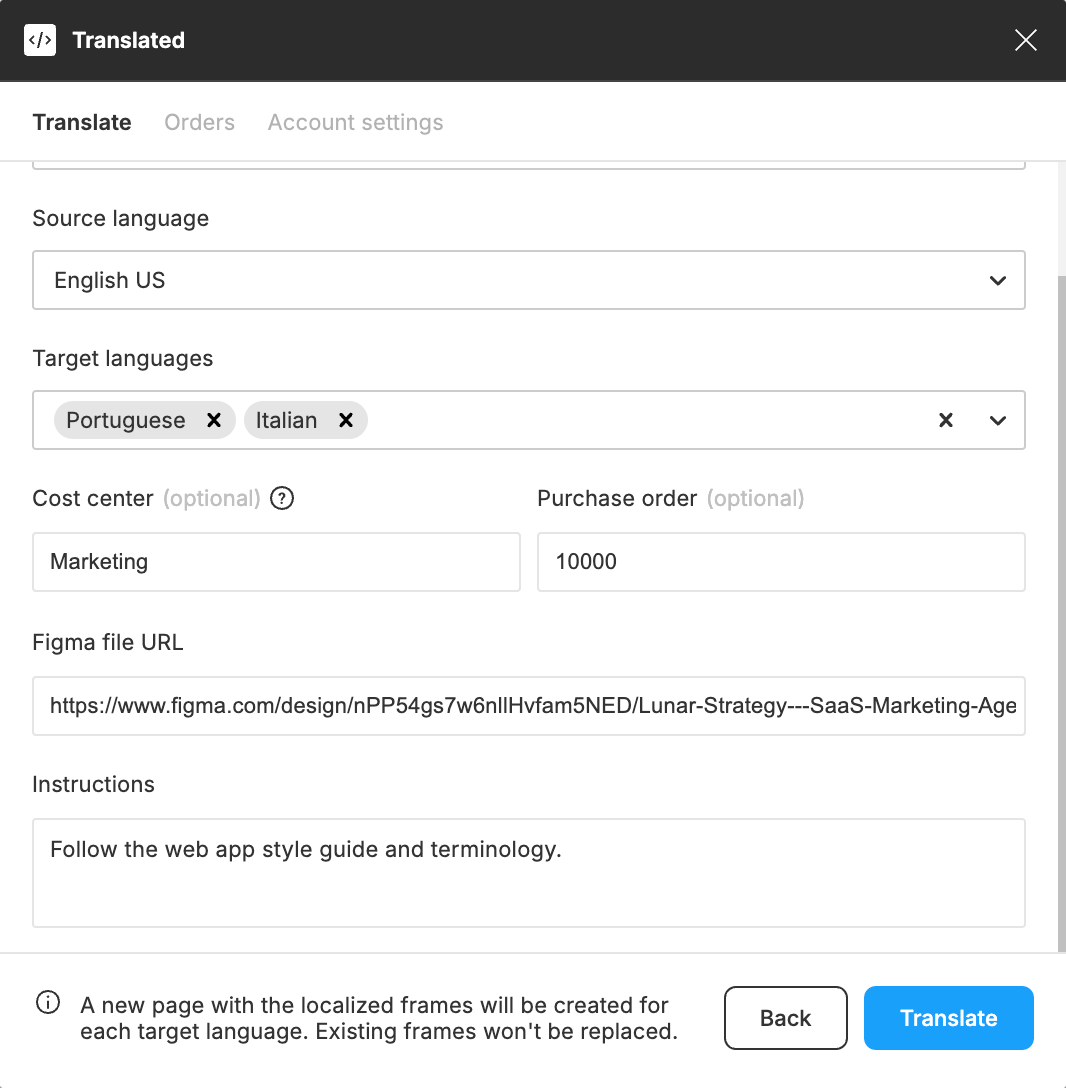
Cost centre and purchase order are optional
Translate
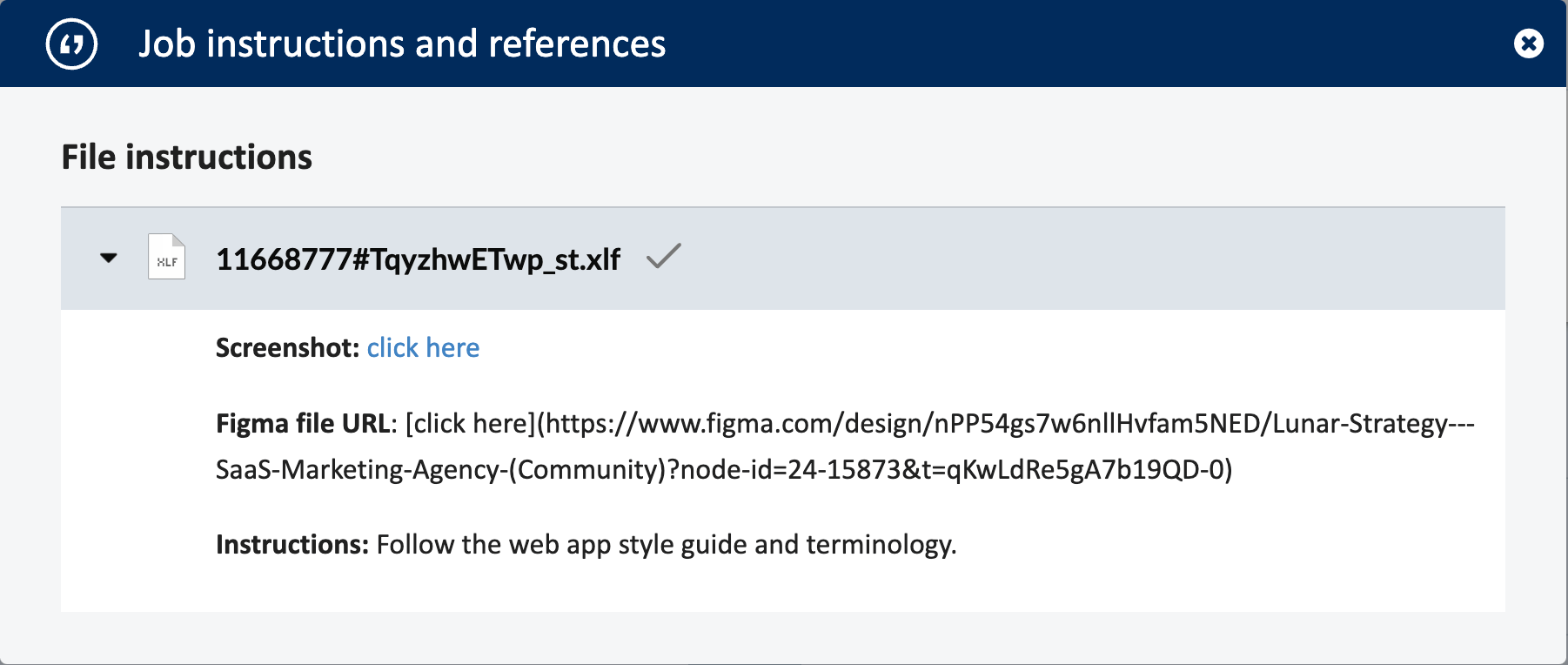
What the translator sees: the frame, the file URL, and your instructions
Machine translation
Continue and choose machine translation
Unlock your Lara license key
Choose memories and glossaries, optional
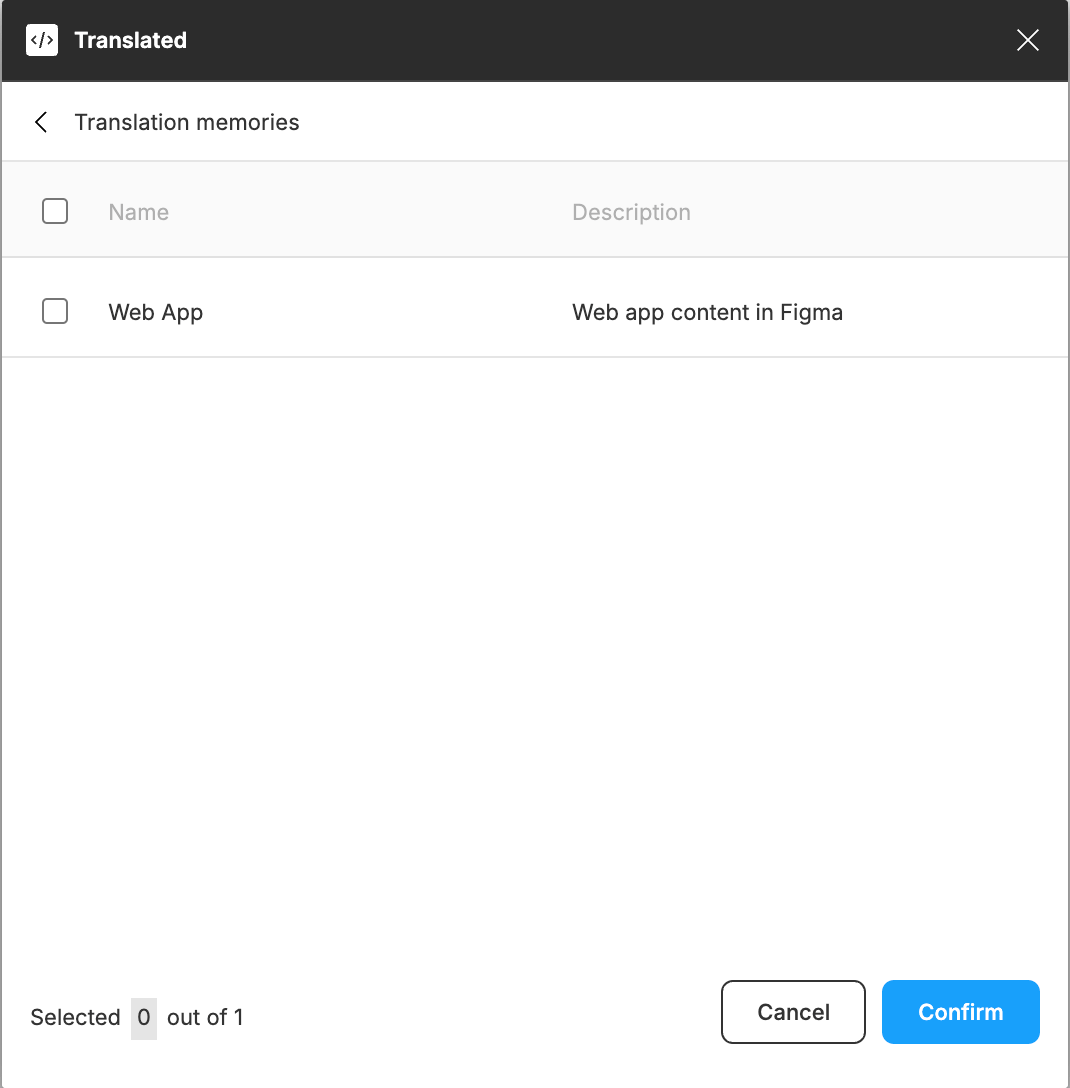
Pick the memories that should inform the output
Translate
Following orders
The Orders tab lists in-progress and completed orders. The list refreshes when you open the plugin, or via the refresh button.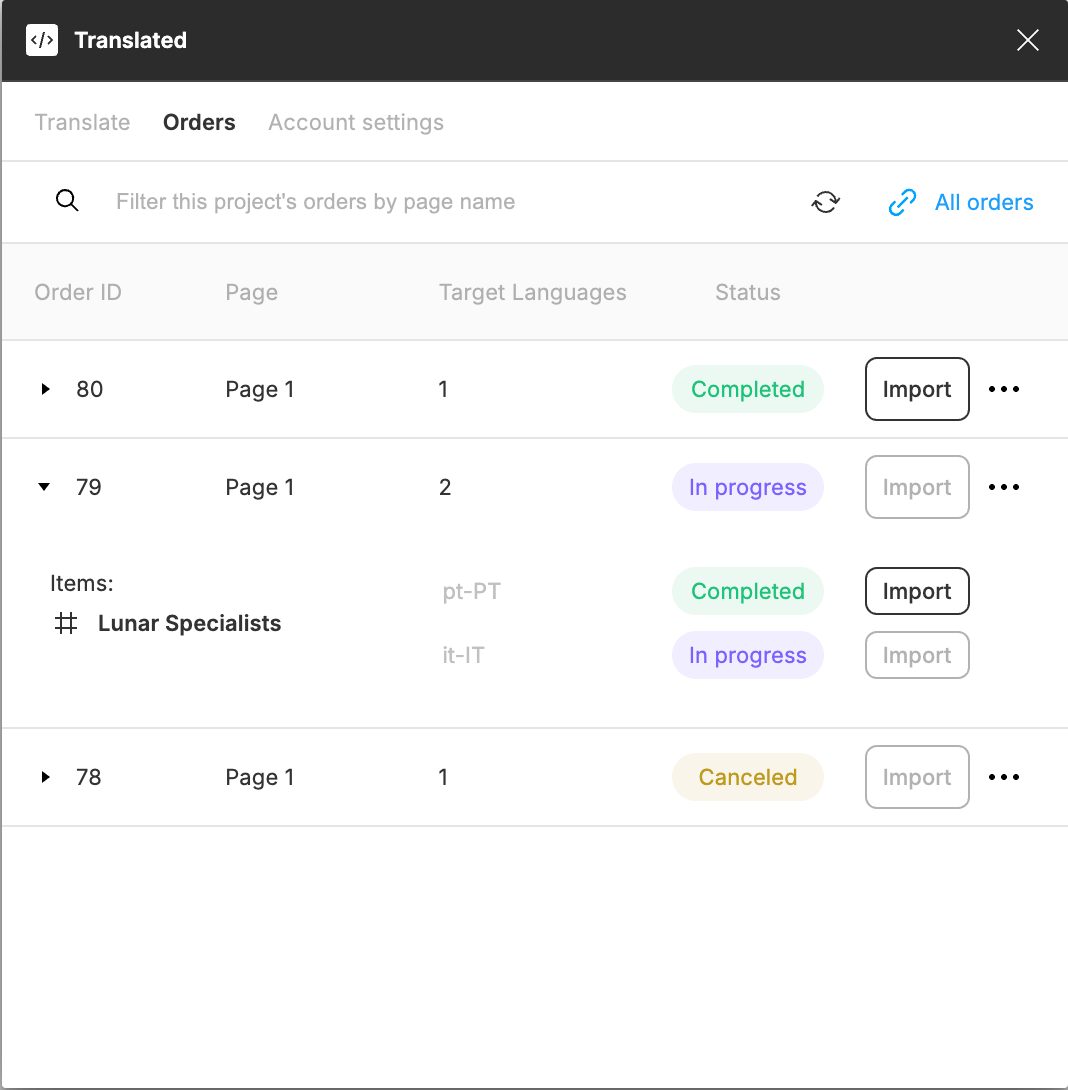
The Orders tab
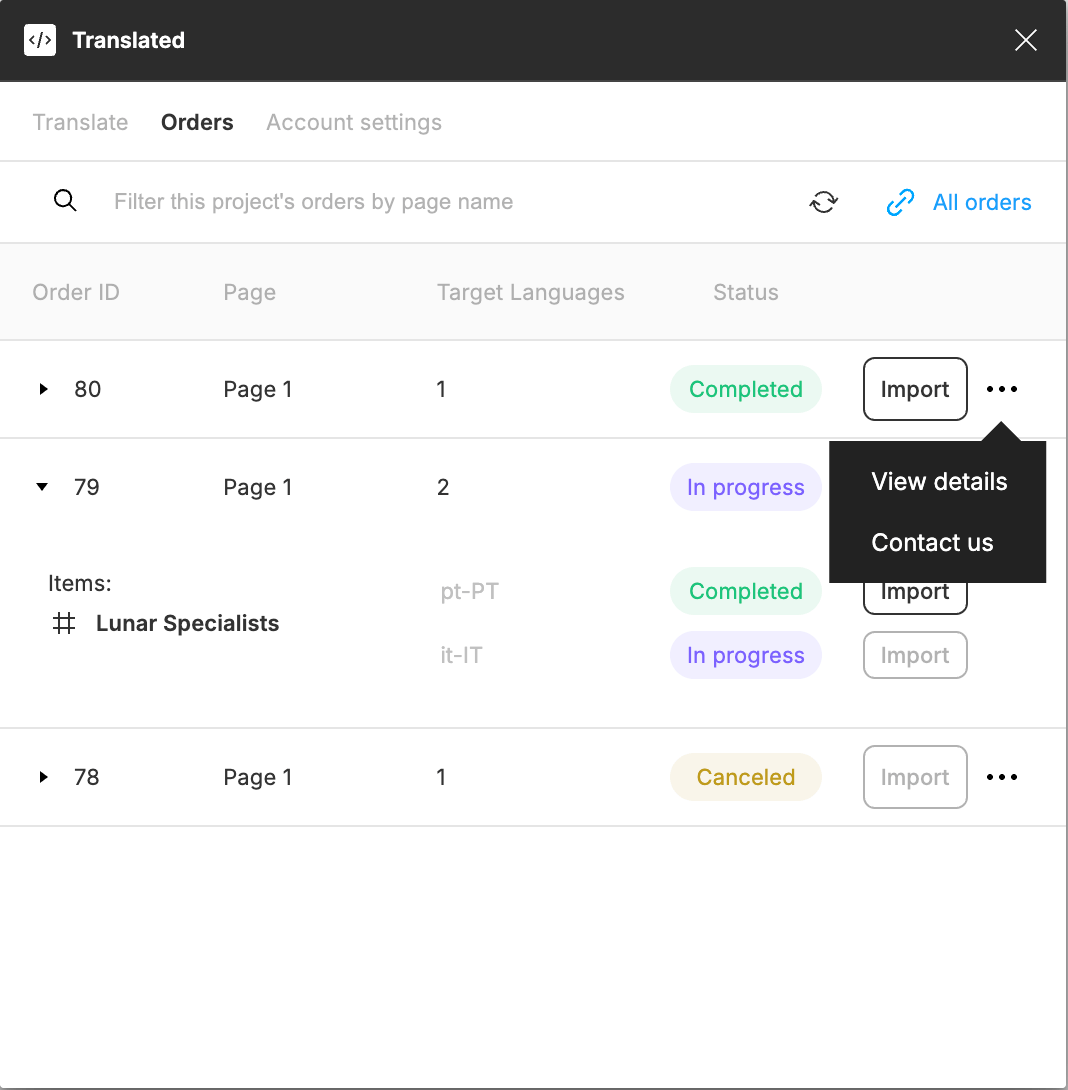
View details opens the order in TranslationOS
Importing
The Import button activates once an order shows as Completed. Cancel is available while the import runs. Imported pages appear in the sidebar. Expect to adjust layout and formatting afterwards. If you need this done for you, desktop publishing is available through your account manager.Reimporting
Reimporting overwrites the target language page, even if you renamed it. If you have adjusted a page and want to keep that work, move it to another file before reimporting.Troubleshooting
Authentication fails
Authentication fails
I cannot place or import orders
I cannot place or import orders
Errors about missing fonts
Errors about missing fonts

The missing fonts error
Text appears empty after import
Text appears empty after import
I need more detail on an error
I need more detail on an error
FAQ
How do I give instructions to translators?
How do I give instructions to translators?
Do translators see the design?
Do translators see the design?
Where do I find my tracking IDs?
Where do I find my tracking IDs?